Live preview
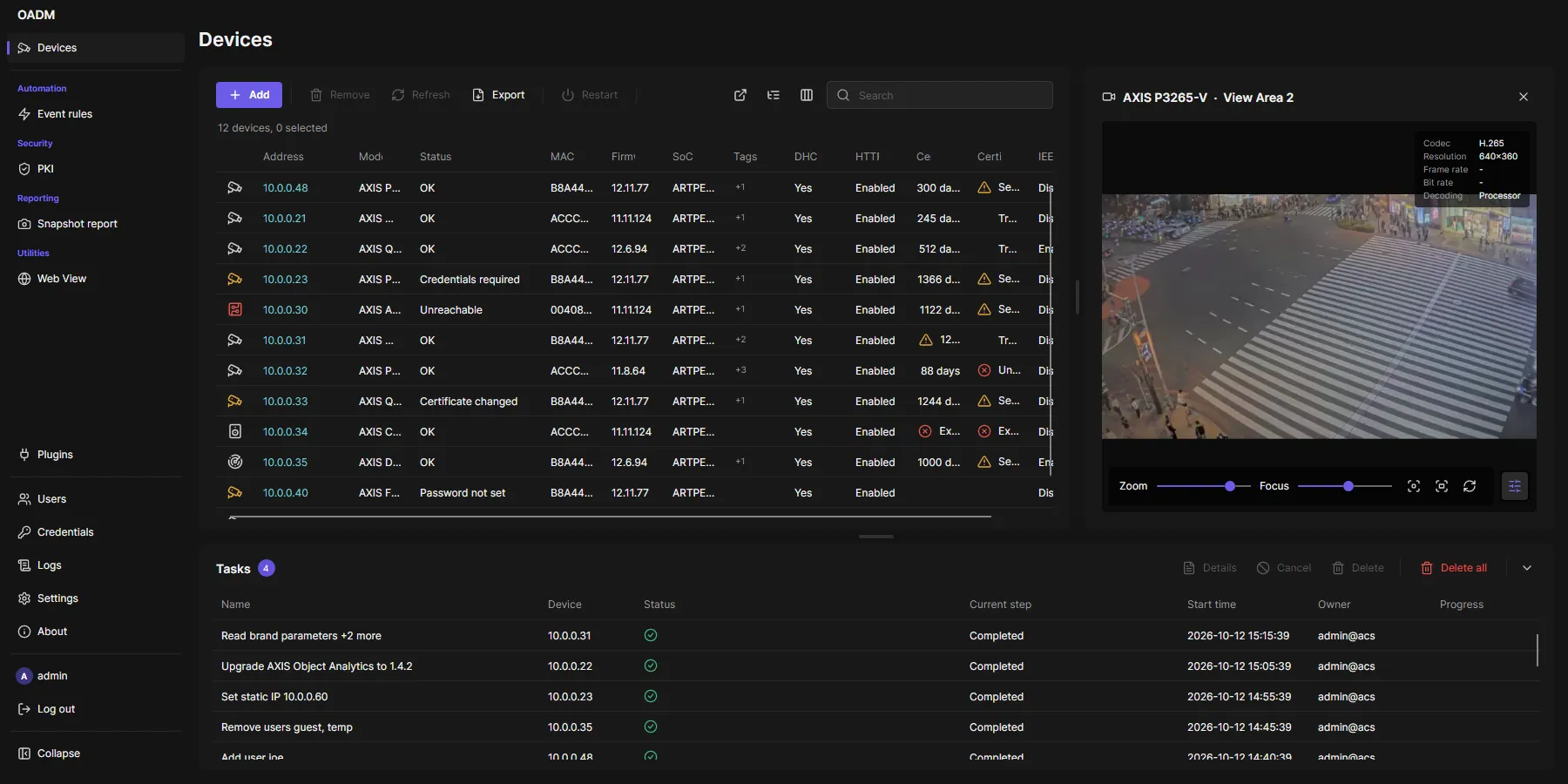
- Click the device icon of a camera, encoder or intercom. The video opens on the right.
- Click another device’s icon to switch, the same icon, the close button or Escape to close.
- Drag the divider to give the video more room. The resolution follows the size of the picture; the picture never goes black while it changes.
- The video stops when you cannot see it (another page, a minimized window) and starts again when you come back.
Over the picture
Section titled “Over the picture”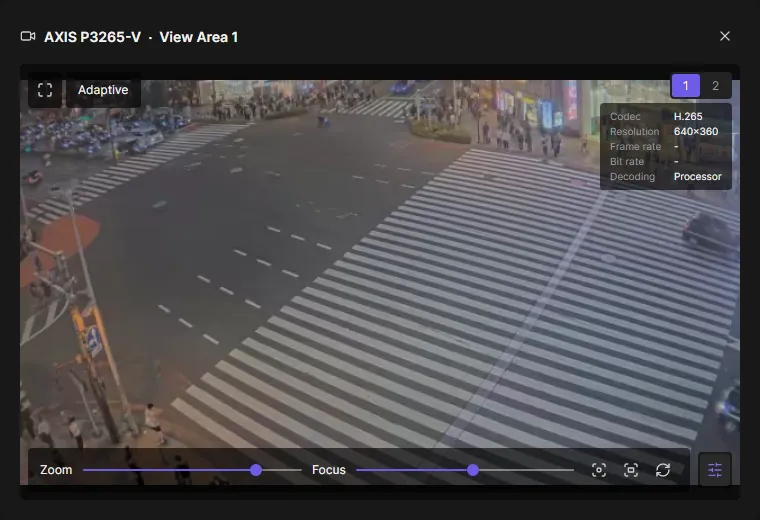
Point at the picture to see its buttons:
- Fullscreen (top left), or double-click the picture. Esc or a double-click closes it.
- Adaptive or Full (top left): Adaptive takes the resolution that fits the picture, Full the largest the camera has. Adaptive uses the frame rate set in Settings > This computer (20 by default).
- 1, 2, … (top right) on cameras with several sensors or view areas switch the source. OADM remembers the choice per device until you close the client.
- Controls (bottom right) shows or hides zoom and focus, or the PTZ controls. They are shown when the live preview opens.
The video uses 16:9 whenever the camera offers it, so it fills a wide screen.
Show video details over the picture in Settings > This computer adds a card at the top right with codec, resolution, frame rate, bit rate and whether the graphics card or the processor decodes.
Zoom and focus
Section titled “Zoom and focus”Cameras with a remote zoom or focus lens show a bar over the bottom of the picture, with the Controls button at its right end to hide and show it. Cameras without a remote lens have no button.
- Zoom goes from wide to tele, Focus from near to far. The camera moves once you let go of the slider.
- Autofocus (focus icon) lets the camera focus by itself.
- Autofocus area (frame icon) shows the area the camera focuses on. Drag a new frame over the picture and click Set: the camera focuses there.
- Reset focus moves focus back to its default and focuses again.
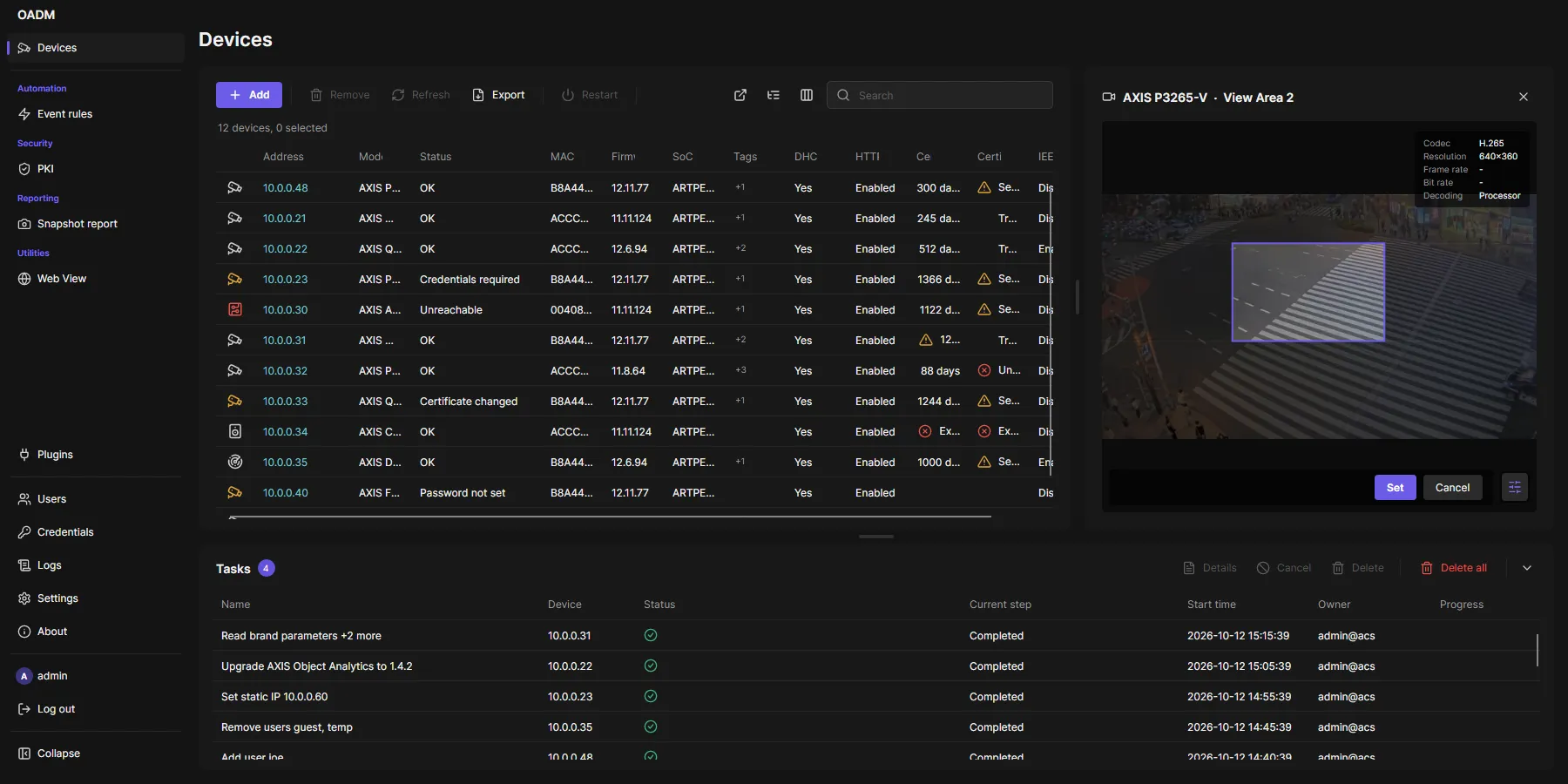
You need the permission Optics Control (Operator has it). Every change is in the audit log.
PTZ cameras
Section titled “PTZ cameras”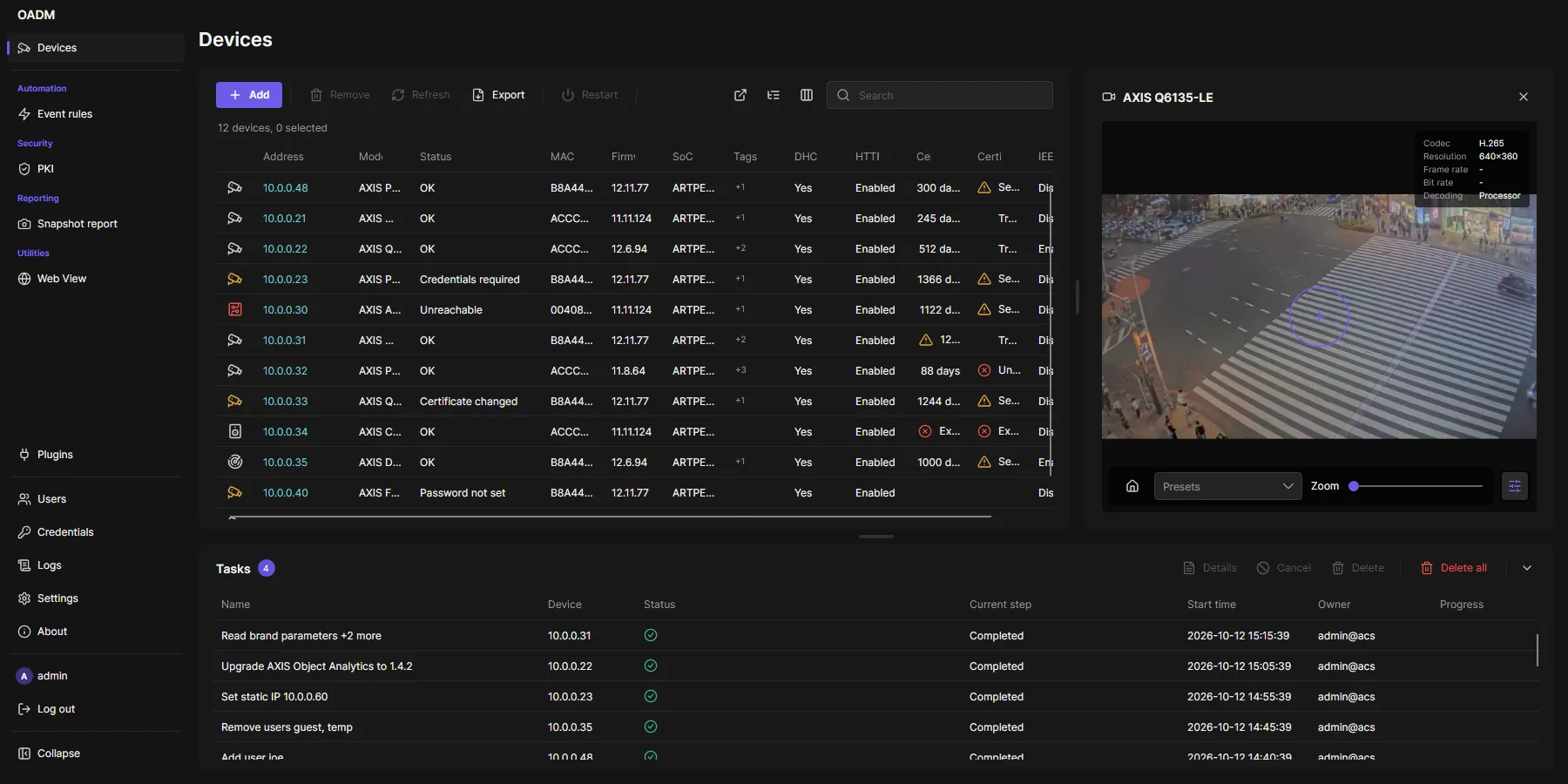
PTZ cameras show a circle in the middle of the picture and a bar with Home, the presets and a zoom slider. The Controls button hides and shows them.
- Move: drag from the circle. The further you drag, the faster the camera turns. Let go to stop.
- Zoom: the mouse wheel over the picture, or the zoom slider.
- Center: click a point of the picture and the camera turns there.
- Presets: choose one in the list and the camera goes there. Home goes to the home position.
You need the permission Optics Control. If the connection to the server breaks while you drag, the camera stops by itself after a second.
RTSP port of a camera
Section titled “RTSP port of a camera”OADM gets the video and the events of a camera over RTSP, port 554. When a camera sits behind a router that forwards another port to its port 554, tell OADM that port. Typical cases: cameras of the AXIS Virtual Loan Tool, a remote site behind one public address, a lab with port forwards.
- Right-click the camera in the device list. Several cameras at once work too.
- Choose OADM > RTSP port.
- Enter the forwarded port, for example
8554, and click Save. Use default goes back to 554.
The port is stored in OADM only; nothing on the camera changes. The live preview and the Metadata Monitor use it. Changing it needs the permission Optics Control.
Decoding on the graphics card
Section titled “Decoding on the graphics card”The client decodes the video on the graphics card when it can, so many cameras run smoothly. It tests the graphics card at every start; when that does not work, the processor decodes and an orange warning icon shows at the top right of the picture. Point at it to see what to do:
- Linux: install the video driver of the graphics card, see Install.
- Any system: update the graphics driver, or turn off Decode video on the graphics card in Settings > This computer. The processor then decodes without the warning.
With Show video details over the picture on, the details say GPU or Processor.
Good to know
Section titled “Good to know”- The server opens the stream with the stored credentials. The client never gets the device password.
- H.265 when the camera and client support it, else H.264.
- Several people watching the same camera share one connection to it.
- The video between camera and server is not encrypted.
- Devices with the status Certificate changed are not shown.