Event rules
An event rule says: when this happens, then do that. For example: while a camera reports blur during working hours, switch on the warning lamp on the I/O box and show an overlay on the camera.
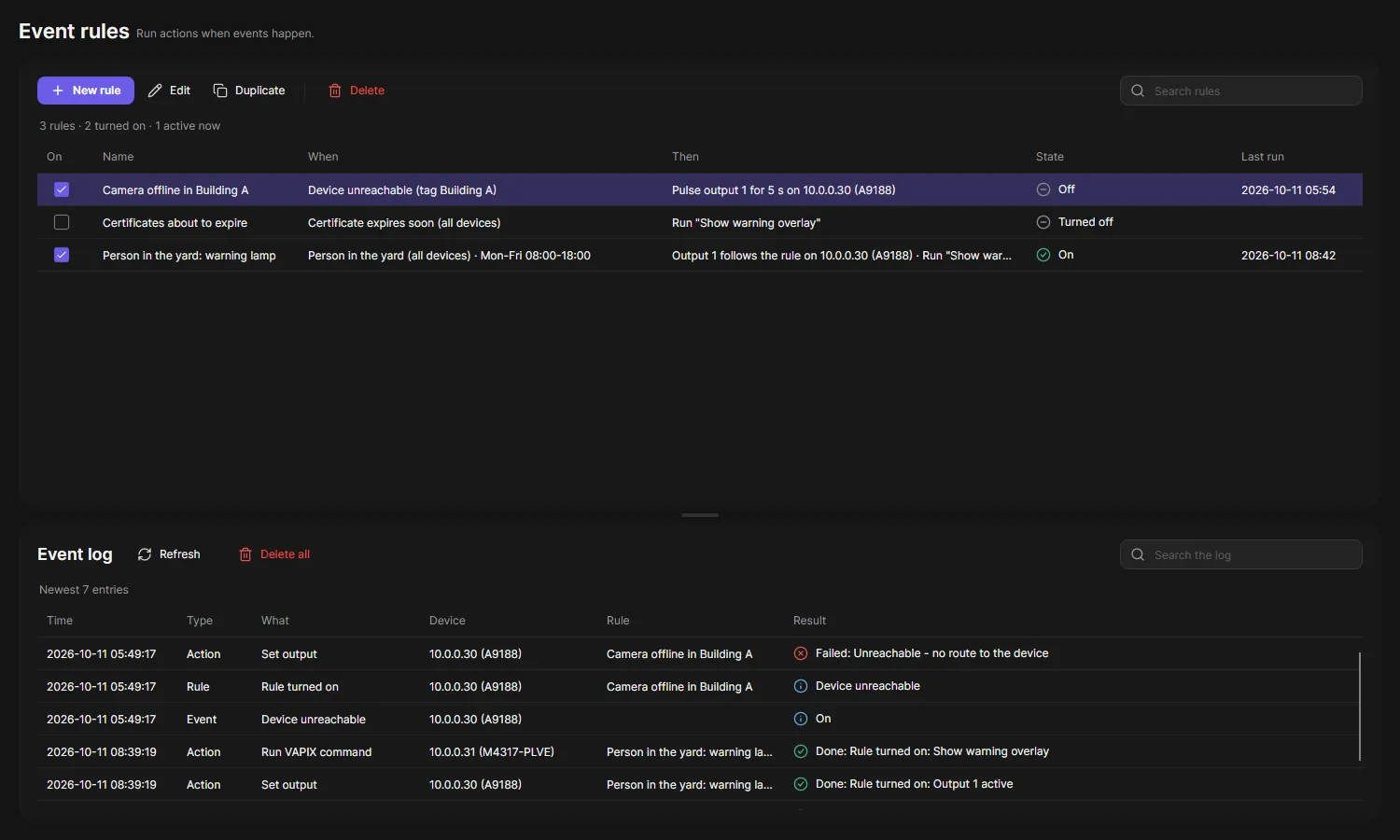
Create a rule
Section titled “Create a rule”-
Open Event rules in the navigation rail and click New rule. The rule is made in four steps; Next goes on once a step is complete.
-
Rule: enter a name. Dead time and Max per minute can stay as they are.
-
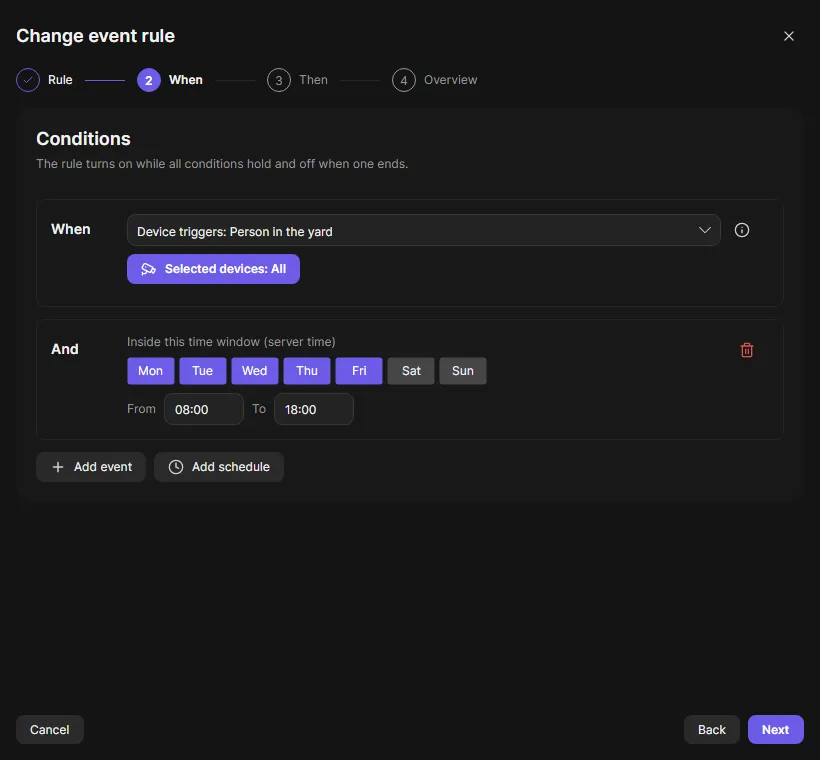
When: choose the event, then the devices with the purple button (Choose devices, later Selected devices): all devices, or any mix of tags and single devices. A tag also covers devices you tag later. Add more conditions if you need them. They all must hold:
- Add event: another event, on the same device or on any device you choose. Example: blur, and the camera is reachable.
- Add schedule: weekdays and a time window. Example: Monday to Friday, 08:00 to 18:00.
-
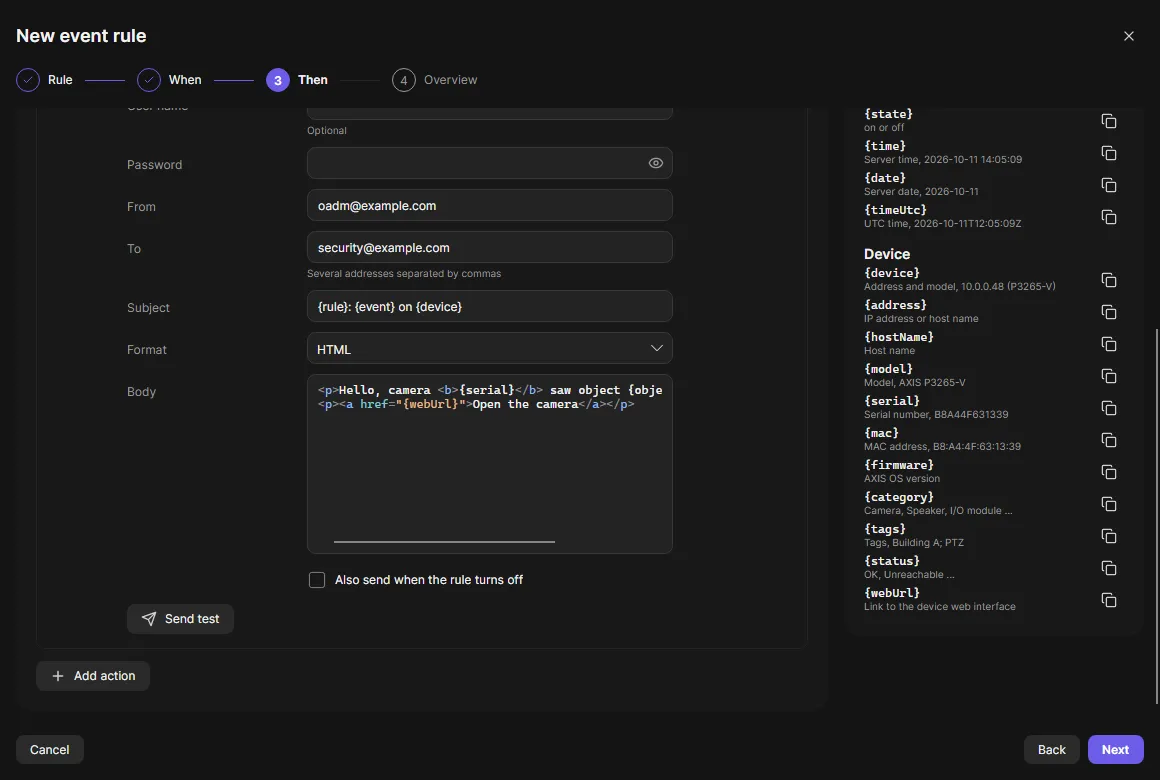
Then: choose up to five actions. They run in the order of the list. With Choose devices pick where each one runs: on the device of the event, on all devices, or on tags and single devices.
-
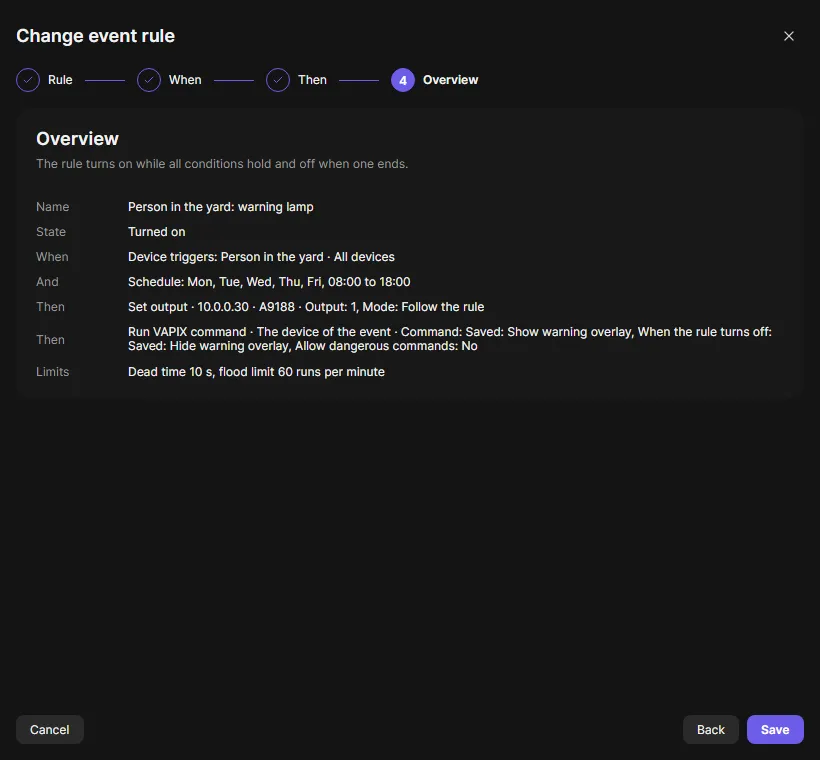
Overview: check the rule and click Save.
Events
Section titled “Events”| Event | Comes from |
|---|---|
| Device unreachable, Credentials required, Certificate changed | The device status OADM sees |
| Certificate expires soon (30 days or less), Certificate expired | The HTTPS certificate of the device |
| Any event a device offers (inputs, virtual inputs, Object Analytics, Image Health Analytics, storage, …) and its “connection lost” | Device triggers you create |
Most events are on while something is true and off again when it ends. Then the rule is on while all conditions hold, and some actions can undo themselves when the rule turns off.
Actions
Section titled “Actions”- Set output: switches an output of the device, for example a relay. Follow the rule keeps it active while the rule is on. Pulse switches it on for a number of seconds. Set active, Set inactive and Toggle do what they say.
- Run VAPIX command: sends a saved command of the VAPIX Commander, with its values and
passwords. Optionally a second command when the rule turns off, for example to hide an overlay again. Commands marked
dangerous need Allow dangerous commands.
Text fields of the saved command can use the event’s values: type
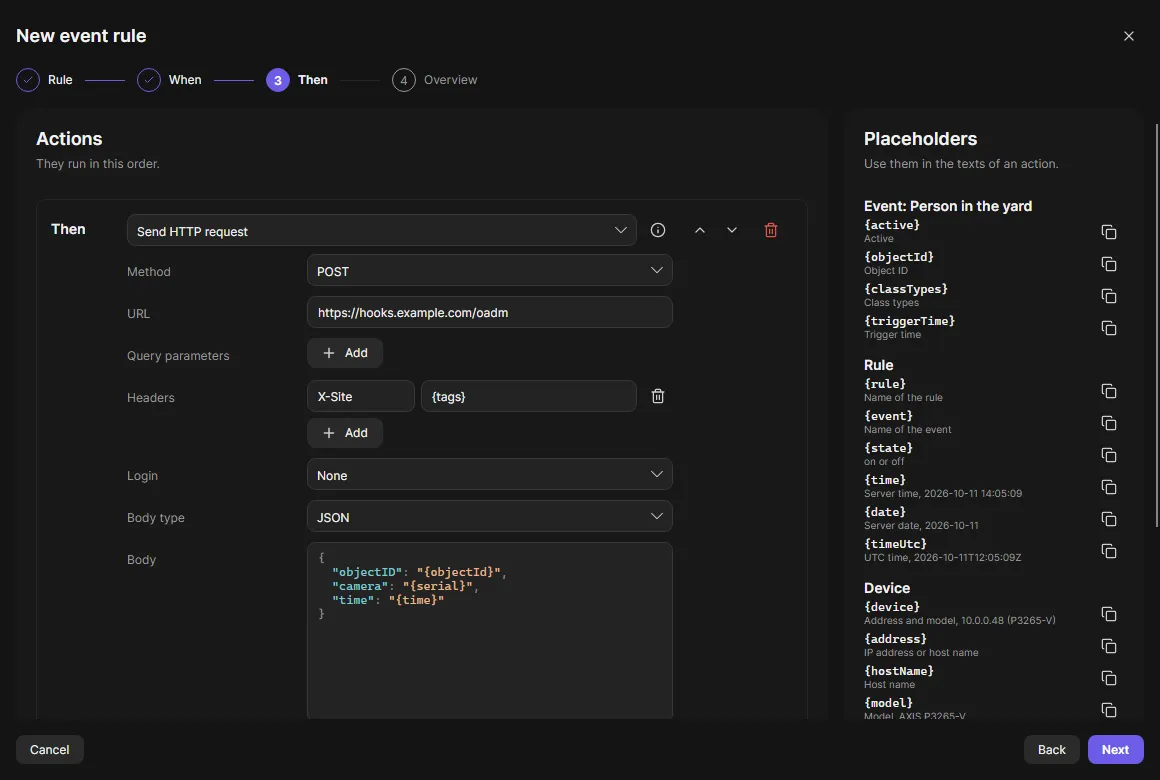
{carID},{port}or{device}as the field’s value and OADM fills it in when the rule runs. The info icon next to an event lists its values. - Send HTTP request: calls a web service, for example a webhook of Teams or Slack or a building system. Method, URL, query parameters, headers, a login (Basic, Digest or a token) and a body as JSON, XML, text or form. Allow untrusted certificates accepts a self-signed certificate on the receiving side.
- Send email: sends a mail through your mail server, as text or HTML. The mail server is part of the action.
Email and HTTP run once each time the rule turns on or fires. Check Also send when the rule turns off for a second
message when it ends; {state} tells which one it is.
Placeholders
Section titled “Placeholders”Every text of an action can hold placeholders that OADM fills in when the rule runs: the rule, the event, the device
(address, host name, model, serial number, MAC address, AXIS OS, tags, a link to its web interface) and every value of the
event, for example {objectId}. The Placeholders card next to the actions lists them; the icon copies one.
In a JSON, XML or HTML body OADM escapes each value, so "objectID": "{objectId}" stays valid whatever the event sends.
Send test sends the email or the request once right away. The event’s values are filled in with sample values, the device is the first one the trigger uses.
When several devices turn a rule on, an action on chosen devices (the lamp on the I/O box) switches on with the first one and off when the last one ends.
Manage rules
Section titled “Manage rules”- Turn a rule on or off with its check box. Turning off a rule that is on runs its “turn off” actions, so a lamp does not stay on.
- Duplicate copies a rule, turned off, with its stored passwords.
- Delete removes a rule after a confirmation.
- The State column shows whether a rule is on and for how many devices, and when an event or action is not available because its plugin is turned off.
Event log
Section titled “Event log”The Event log below the rules lists what happened: the events your rules use, when a rule turned on, off or ran, and every action with its result. The newest entries come first and new ones appear live. OADM keeps the log for 30 days or 100,000 entries. Administrators can empty it with Delete all.
Good to know
Section titled “Good to know”- Dead time (default 10 s): after the rule ran for a device, that device is ignored for this long. Max per minute (default 60 runs per minute for the whole rule): further events are skipped. Both protect against a flickering camera; skipped runs are noted in the event log.
- After a server restart OADM checks every event again and runs only what changed while it was down.
- A failed action is logged; the next action of the rule still runs. OADM does not retry.
- Devices that need a login, have no password yet or have a changed certificate are skipped.