Web View
The Web View opens the web interface of your devices inside OADM, already logged in with the login OADM stores for each device. Go through many cameras one after another without typing a password once.
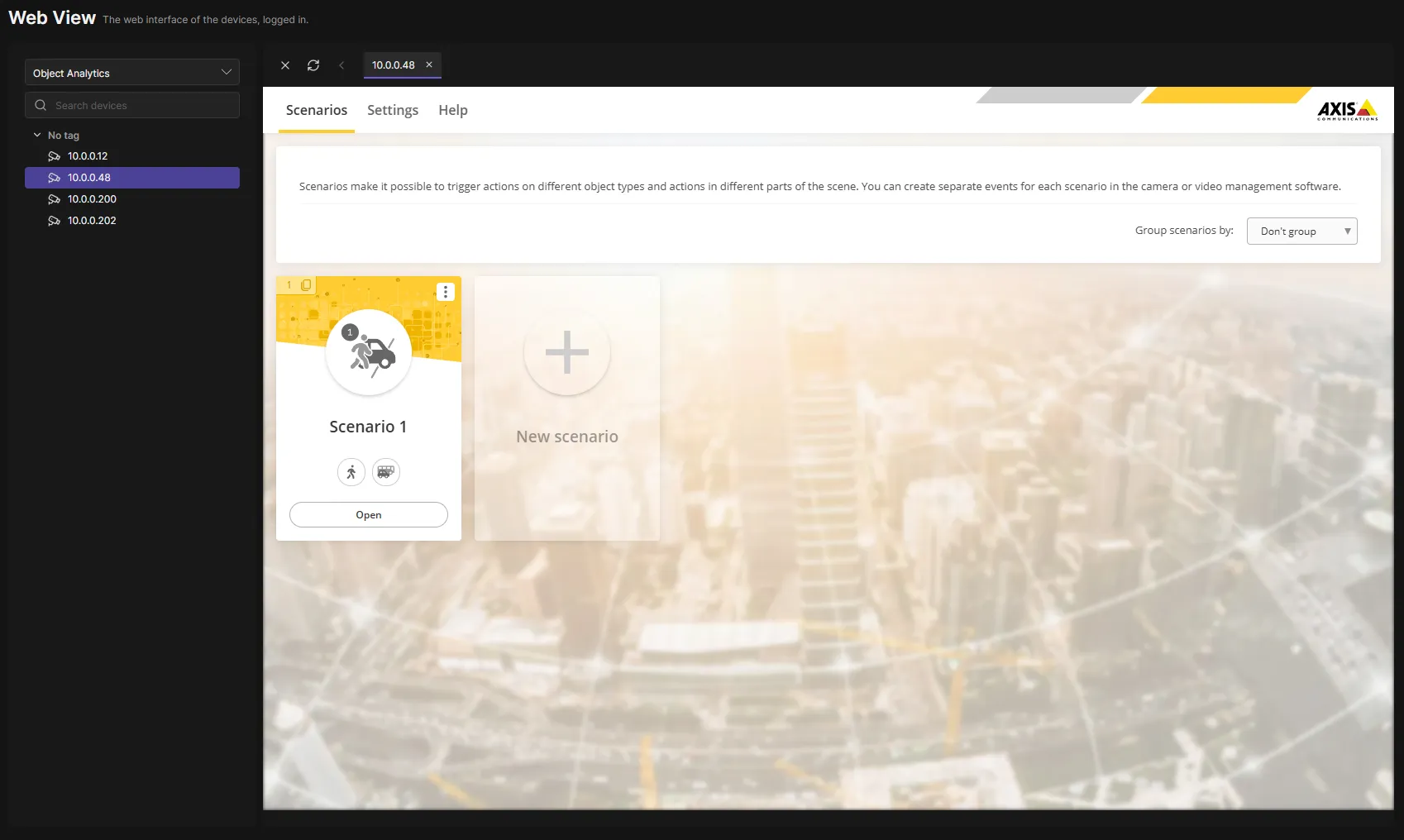
Use it
Section titled “Use it”- Open Web View in the navigation rail.
- Click a device on the left. Its web interface opens in a tab. Click it again later to go back to its tab.
- The select above the search chooses the page: the web interface, its Overlays or Privacy masks page, AXIS Image Health Analytics, AXIS Object Analytics or
AXIS License Plate Verifier. Choose Custom and enter a path on the device, for example
/local/myapp/index.html, then press Enter. New tabs open the page you chose, so you can check the same app on camera after camera. - Above the page: close all tabs, reload, and go back to the previous page of the tab.
The list groups the devices by tag, like Group by tag on the Devices page. A device with several tags is listed under each of them. The icon turns amber or red when a device needs attention; point at it for the reason. Search finds address, model, MAC address, host name and tags.
Good to know
Section titled “Good to know”- The login never leaves the OADM server: the server opens every page for you. It also works when your computer cannot reach the cameras directly, as long as the server can.
- Opening a device’s web interface is written to the audit log.
- Devices that need a login, have no password yet or have a changed certificate show the reason instead of the page. Fix them on the Devices page first (Log in, Set password).