Edge Recording Export
Edge Recording Export downloads the recordings that cameras keep on their SD card or network share, from many cameras at once, into a folder on this computer.
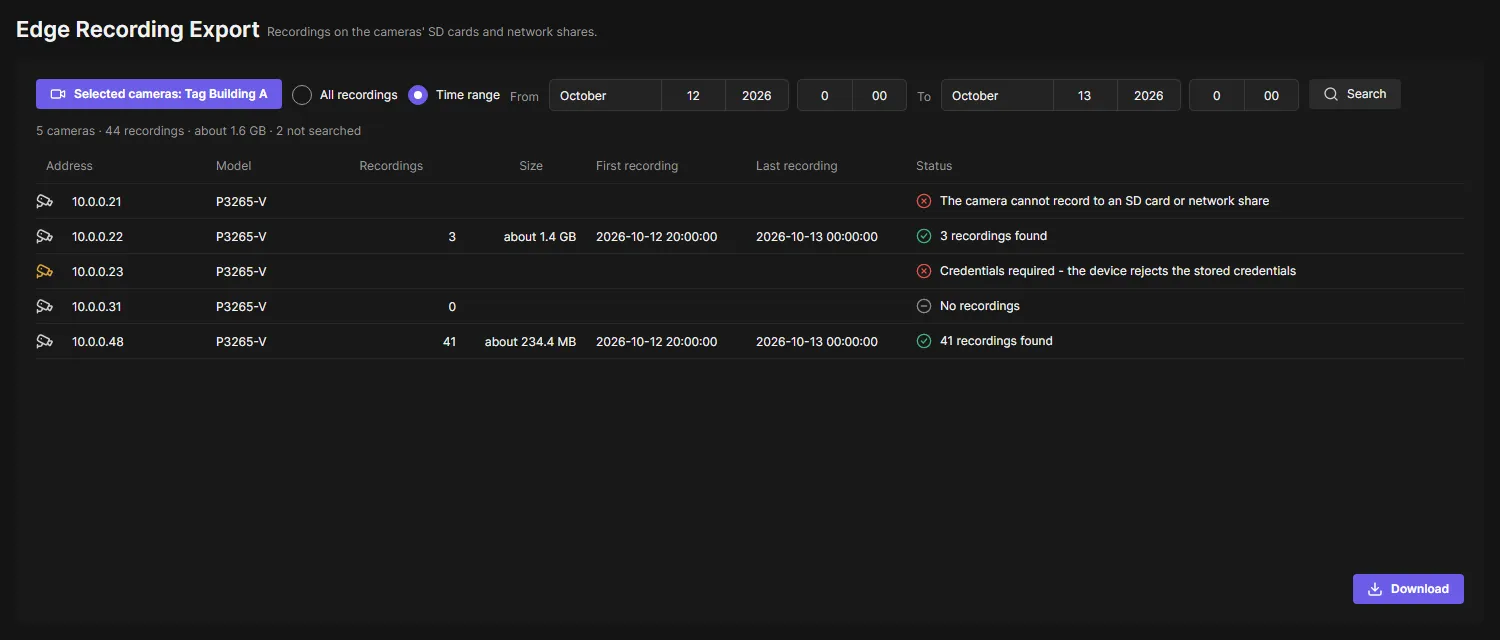
Find recordings
Section titled “Find recordings”- Edge Recording Export is off when OADM is installed: an administrator turns it on under Plugins.
- Open Edge Recording Export in the navigation rail.
- Click Choose cameras and pick cameras or tags. The button then shows what is chosen. Only devices with video are listed.
- Choose All recordings, or Time range and pick the date and time of From and To. The times are this computer’s time.
- Click Search. Each camera shows how many recordings it has in that time, about how large they are, and the first and last recording.
A recording that only partly falls into the time range is cut to it.
When the card is the problem, the camera’s row says so, for example No SD card or network share, The SD card failed or The SD card is read-only. A full card is normal: the camera removes the oldest recordings.
Download
Section titled “Download”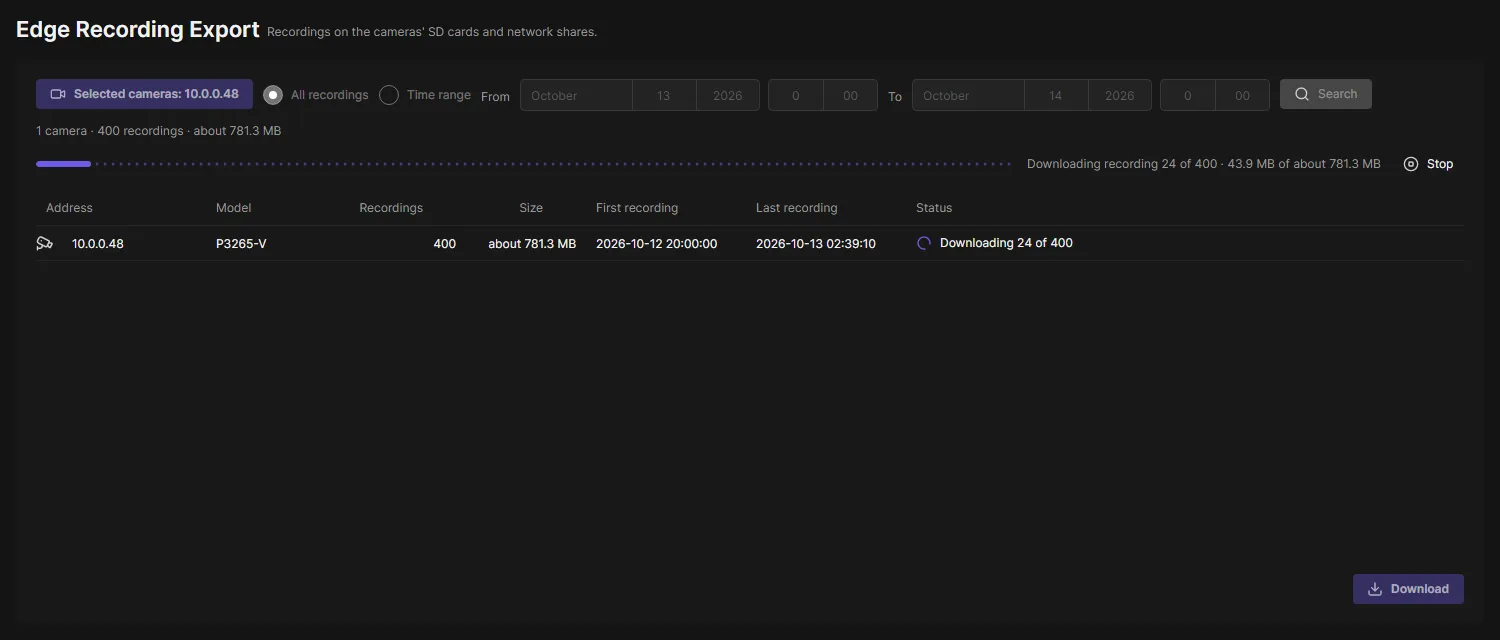
- Click Download and choose a folder.
- OADM downloads one recording after the other. Each camera gets its own folder, for example
10.0.0.48 P3265-V B8A44F631339, and each file keeps the name the camera gives it. - Stop ends the download. The finished files stay; the next Download into the same folder skips them and continues.
The download keeps running while you work on other pages. It ends when you log out.
Good to know
Section titled “Good to know”- Files are MP4 when the camera offers it, otherwise Matroska (
.mkv). Both play in VLC; MP4 also plays in the players of Windows and macOS. - The recordings travel from the camera through the OADM server to this computer. The camera’s password never reaches this computer, and nothing is stored on the server.
- Who may download is the right Export recordings on the Users page (Operator has it, Viewer does not). Every downloaded recording is in the audit log.
- Cameras that need a login, have no password yet or show Certificate changed are not asked.