Device triggers
A device trigger makes an event of your devices available to the event rules: a digital input, a virtual input, an Object Analytics scenario, a blur detected by AXIS Image Health Analytics, a storage alert, a temperature warning or the event of another app. OADM reads which events each device offers and keeps a live connection to every device a trigger uses.
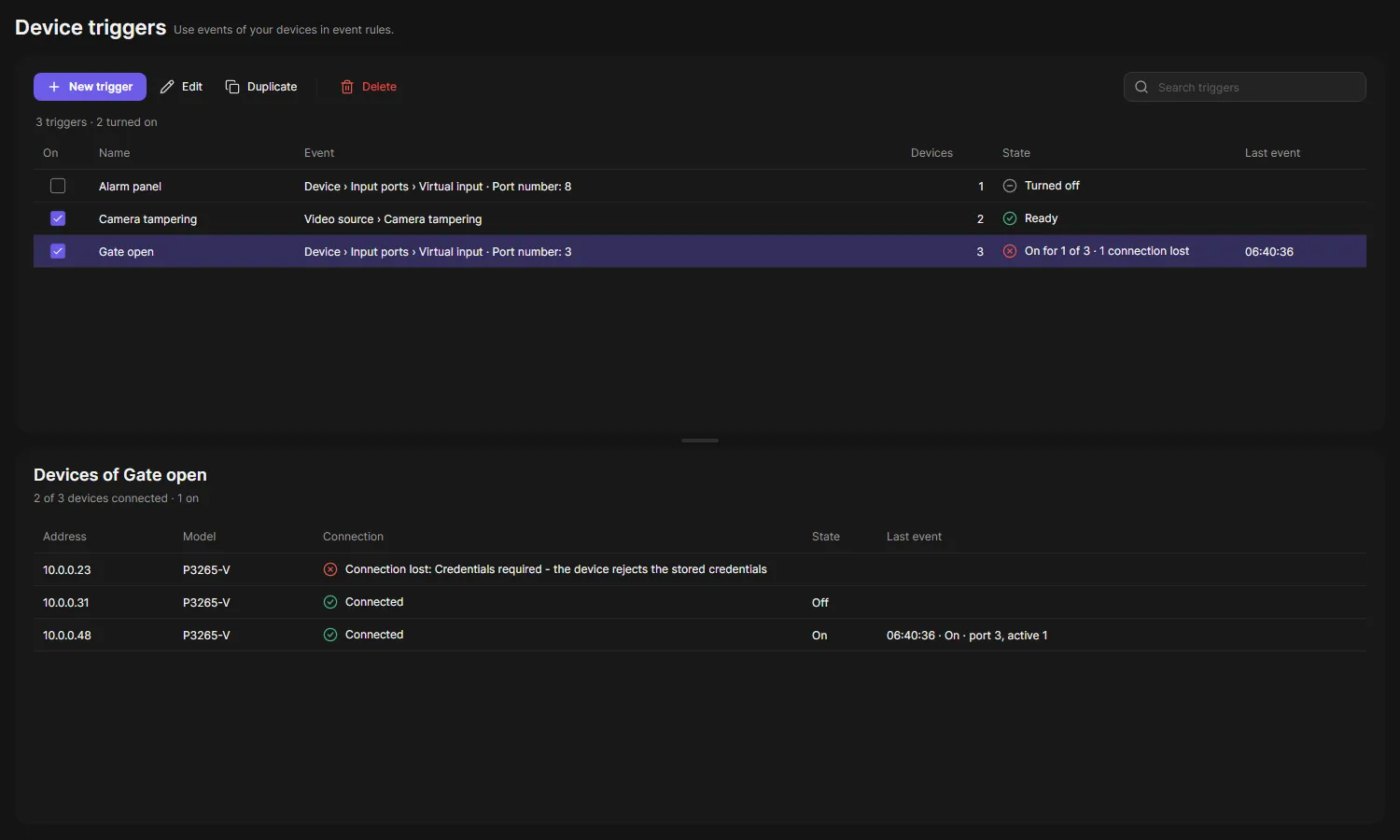
Create a trigger
Section titled “Create a trigger”- Open Device triggers in the navigation rail and choose New trigger.
- Give it a name, for example “Gate open”. Rules show the trigger by this name.
- Choose Choose devices: All devices, or any mix of tags and single devices, then OK. A tag also covers devices you tag later; with All devices new devices join by themselves. OADM then asks each device which events it offers right now.
- Choose the Event. The list has every event the devices offer, grouped like on the device.
- Optionally narrow it down, for example Port number 3. Any means every port.
- Choose Save.
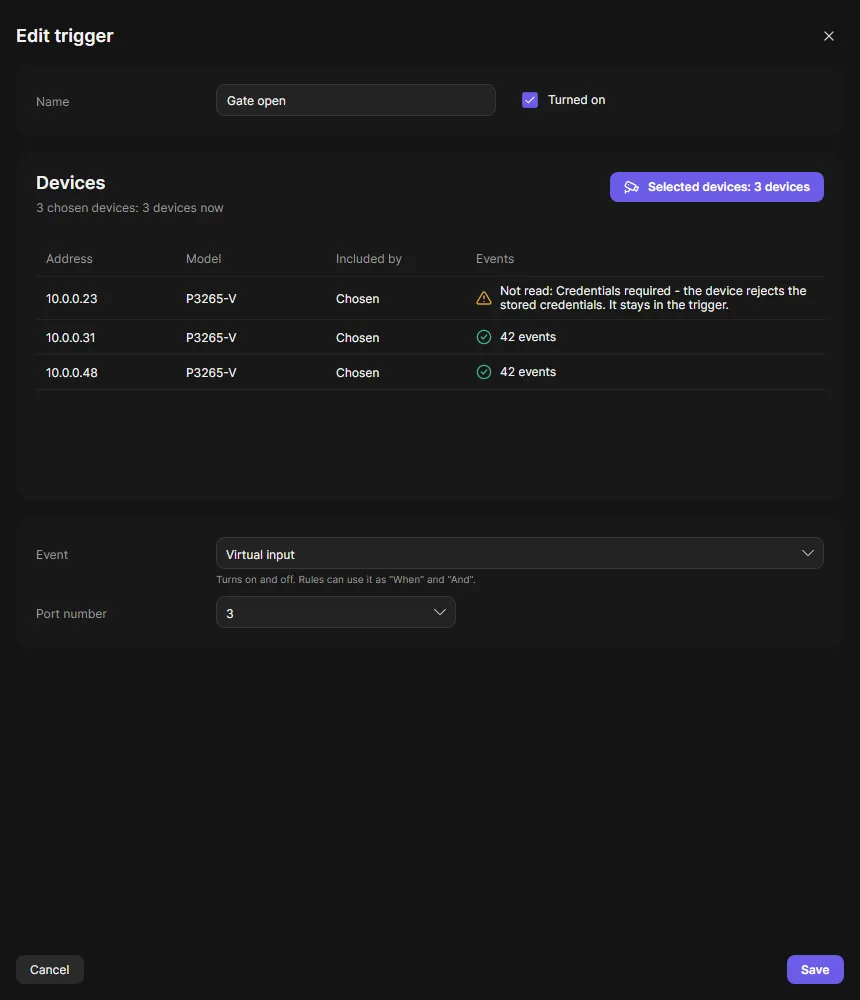
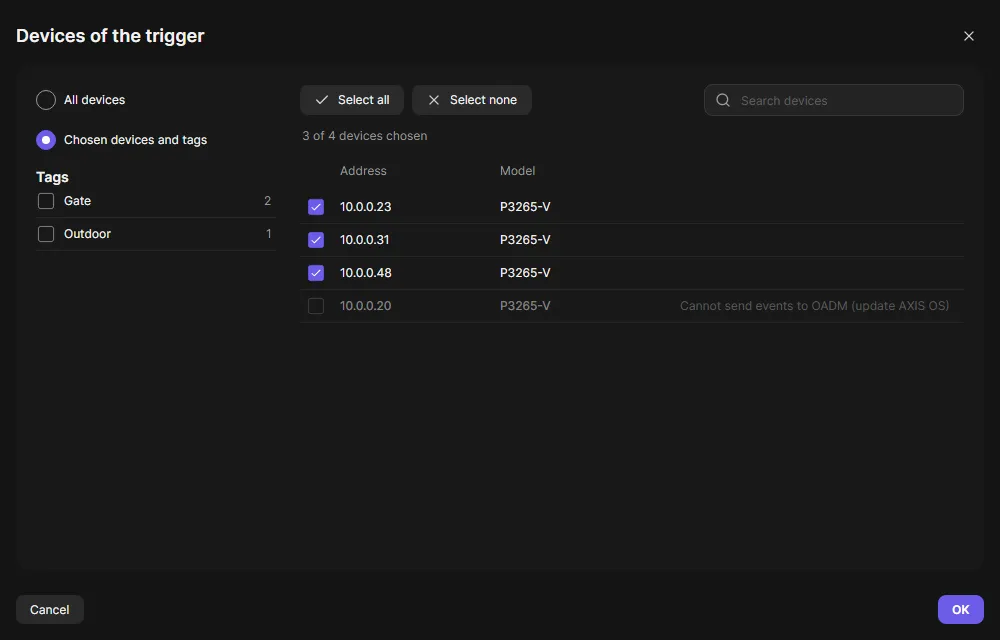
A device you chose one by one that does not offer the chosen event shows Does not offer this event: take it out with Choose devices or choose another event. A device that came in through a tag or All devices and does not offer the event is simply left out. A device that cannot be read right now, for example because it is offline, shows why and stays in the trigger: OADM connects as soon as it answers. Devices with older AXIS OS that cannot send events this way are greyed in the device list.
Use it in a rule
Section titled “Use it in a rule”Every trigger appears in the rule dialog in the group Device triggers, twice:
| Event | On while |
|---|---|
| Gate open | The event is on, for example the input is active. With Any, while at least one port is on. |
| Gate open: connection lost | OADM gets no events from the device for 30 seconds: no connection, the login is refused, or the event is no longer on the device (for example Object Analytics was stopped). |
Events that happen once (camera tampering, a counting report) fire the rule each time. The values of the event can go
into actions, for example {port} in a VAPIX command. The rule dialog lists them under the event.
Object Analytics and Image Health Analytics
Section titled “Object Analytics and Image Health Analytics”- Object Analytics: each scenario is its own event, named like the scenario, plus Any Scenario. Object in area,
line crossing and tailgating turn on and off. Crossline counting and occupancy send their counts each time (use
{total},{human}or{car}in actions); occupancy also has a threshold alarm that turns on and off. To try a rule, use Test alarm of the scenario in the app: the trigger turns on for a few seconds. - Image Health Analytics: Blur, Block, Redirect, Under-Exposure, Unsuitability and Any-Active-Events turn on and off.
- An app that is stopped has no events. The trigger then shows The event is no longer on the device, and after 30 seconds its “connection lost” event turns on.
Good to know
Section titled “Good to know”- OADM reads the events from the devices each time you create or edit a trigger, and again every 5 minutes while connected. Apps add their events only while they run.
- During a short outage the trigger keeps its last state. After the device is back, it reports its current state and only real changes run actions.
- The devices table below the triggers shows the connection, the state and the last event of each device.
- A trigger that is turned off closes its connections. Its rules stay but do not run.
- A device removed from OADM leaves its triggers.