Device configuration
Export configuration saves the configuration of devices to files. Import configuration applies such a file to other devices of the same model, or puts the configuration of each device back. Both need AXIS OS 12.5 or later.
Configure devices sets chosen parameters, action rules and stream profiles on many devices at once, like ADM’s
Configure devices. Create configuration file saves chosen settings of one device as a file. Both work with AXIS Device
Manager configuration files (.cfg) and with older AXIS OS too. See Configure devices.
All four are in the context menu under Maintenance.
OADM uses the device’s own export and import, the same as Maintenance > Export / Import in the camera’s web interface. Like there, a file holds part of the configuration:
| In the file | Not in the file |
|---|---|
| Network and system settings (parameters), event rules, schedules, MQTT events, time zone, power settings, password policy | Users and passwords, certificates, firewall, SSH, applications and their settings, analytics, overlays |
Export
Section titled “Export”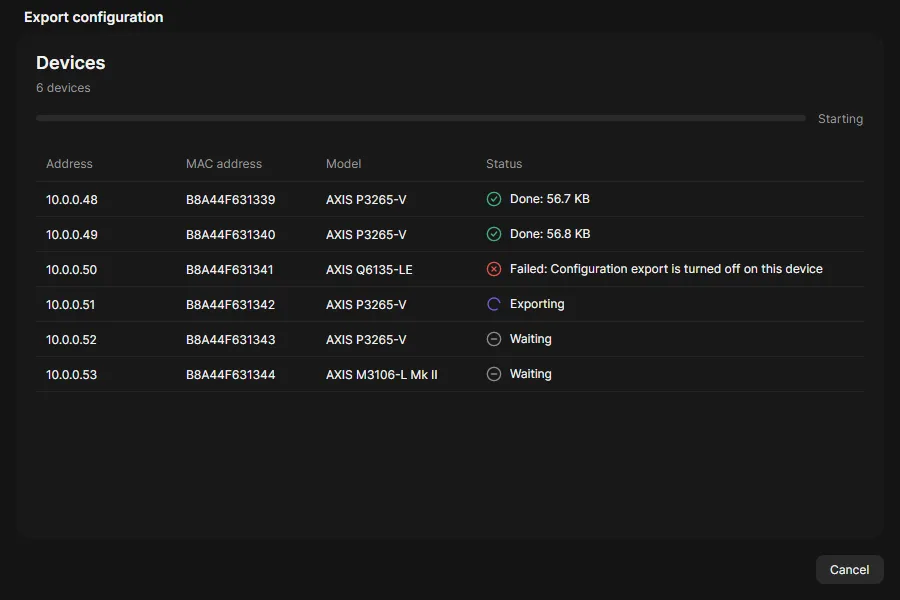
- Select the devices, right-click and choose Maintenance > Export configuration.
- Choose where to save. One device gives a
.jsonfile, several devices one ZIP with a file per device. - The window shows each device: Done with the size, or Failed with the reason. In a ZIP,
summary.txtlists the devices that failed.
The file names hold address, MAC address and model, for example 10.0.0.48_B8A44F631339_P3265-V_config.json. The
import of a ZIP finds each device by that MAC address.
Import
Section titled “Import”- Select the devices, right-click and choose Maintenance > Import configuration.
- Choose a file:
- A
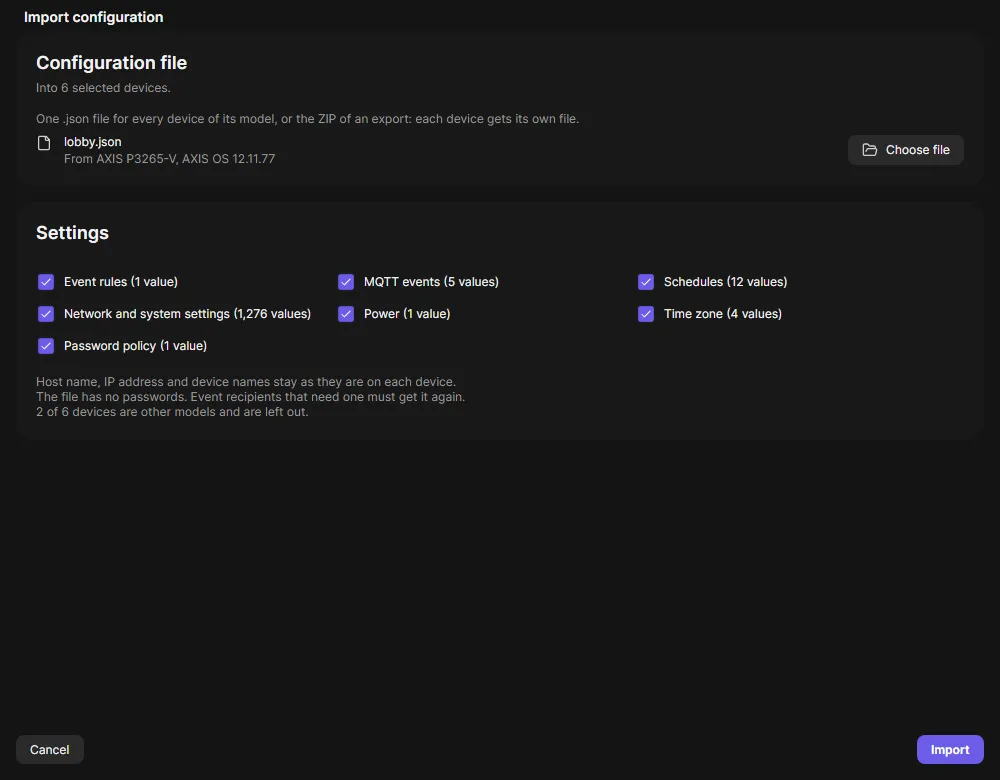
.jsonfile goes to every selected device of its model. Devices of another model are left out. - A ZIP from Export configuration gives each selected device its own file.
- A
- Untick the settings you do not want to import.
- Click Import and confirm. OADM uploads the file once, then a task starts per device.
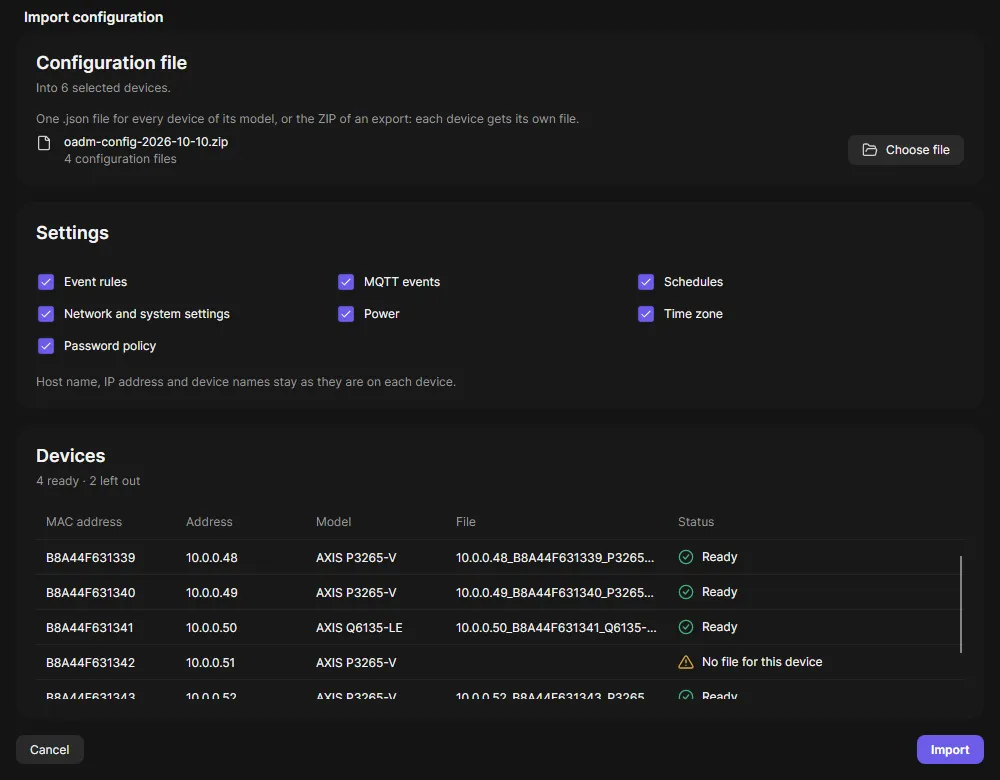
With a ZIP, the Devices list shows per device which file it gets: Ready, No file for this device, Two files for this device, Other model or Not a device configuration file. Devices with a problem are left out.
What stays on each device
Section titled “What stays on each device”- Host name, IP address, subnet, router, DHCP on or off and the device names are never imported, so many devices can share one file.
- Settings that are not in the file stay as they are.
- Passwords are not in a file. Event recipients that need one, for example an FTP server, must get it again.
Steps of an import
Section titled “Steps of an import”| Step | What happens |
|---|---|
| Read configuration file | Reads the file the device gets. |
| Check compatibility | AXIS OS 12.5 or later, the same model as the file. Otherwise the task fails with “Nothing was changed”. |
| Import network and system settings, Import event rules, … | One step per settings area. The device checks the values itself; its warnings or errors show in the step. A refused area does not stop the others. |
| Verify configuration | Exports again and compares. Settings that differ make the task end with warnings. |
Configure devices
Section titled “Configure devices”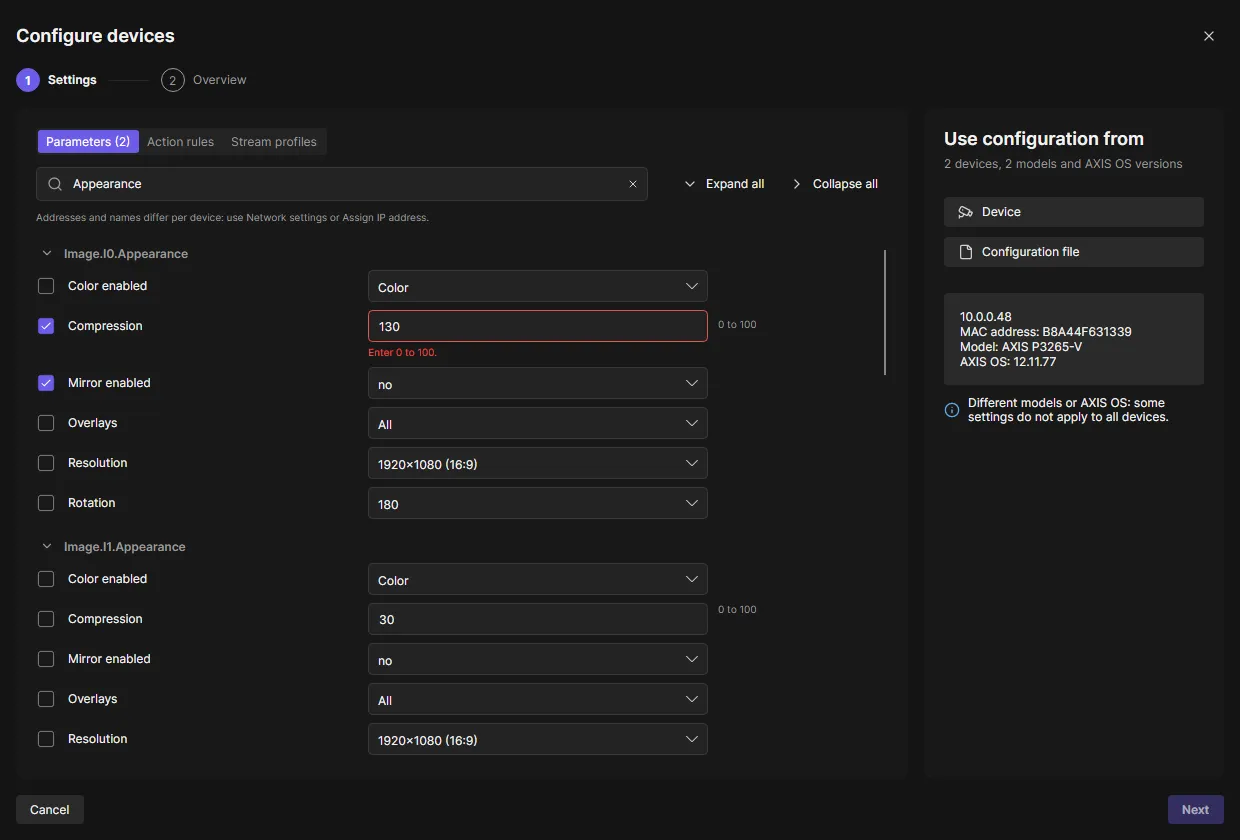
- Select the devices, right-click and choose Maintenance > Configure devices.
- The settings of the first selected device are shown. To take them from somewhere else, use Use configuration from:
Device (any device in OADM) or Configuration file (an AXIS Device Manager
.cfgfile). - In Parameters, check what to set and enter the value. Typing a value checks the parameter. Wrong values are named below the field.
- In Action rules and Stream profiles, check what to copy.
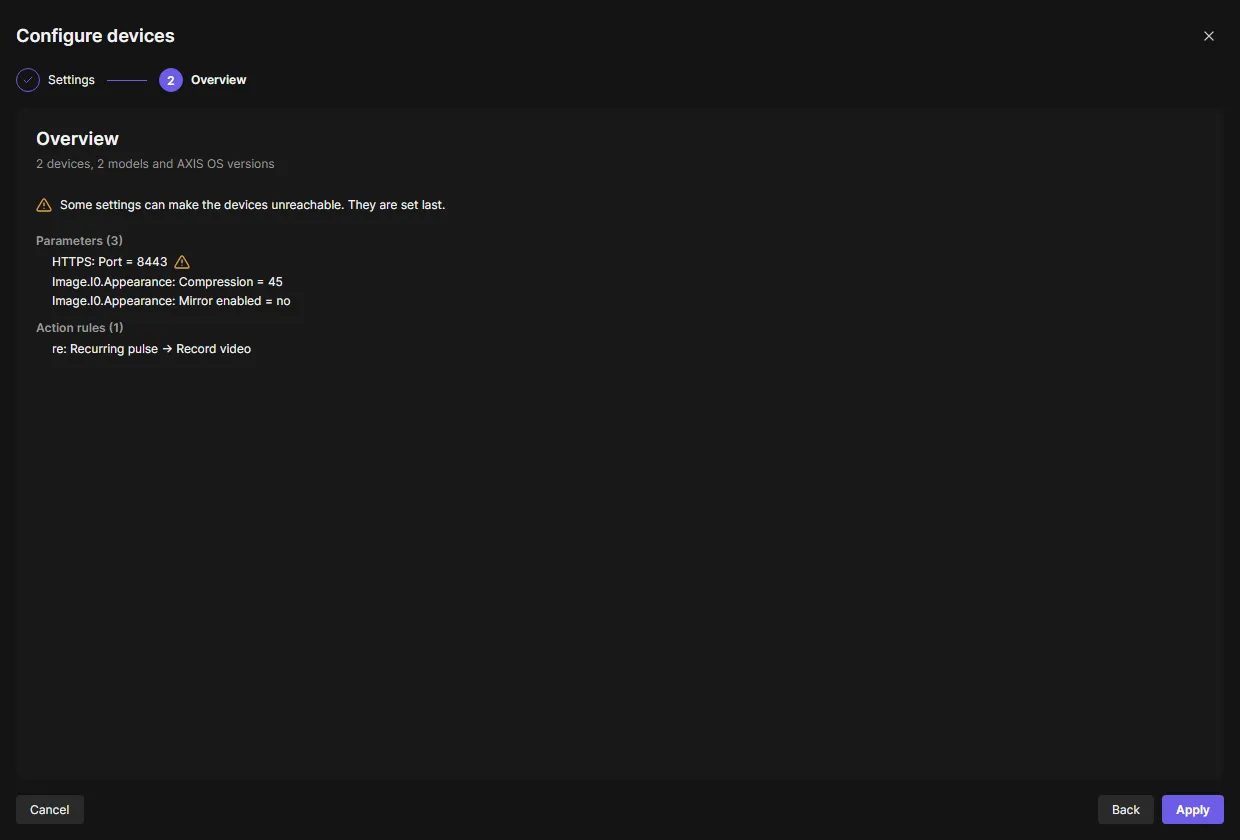
- Click Next, check the overview, then Apply. A task starts per device.
- Different models or AXIS OS: only the parameters every selected device has are shown, and drop-downs only offer the choices every device has. Show parameters that not every selected device has shows the others too; devices without such a parameter skip it.
- A file from AXIS Device Manager: its parameters, action rules and stream profiles are checked. Parameters no selected device has are named and left out.
- Dangerous settings (addresses, host names, HTTPS, the login method, IEEE 802.1X) have a warning icon. Apply asks before they are set, and they are set last. A role needs Configure dangerous parameters to see them.
- Addresses and names that differ per device (IP address, host name, device names) are only offered when one device is selected. For several devices, use Network settings or Assign IP address.
- An action rule or stream profile with the same name on a device is replaced. Applying the same settings again changes nothing more.
- The source device keeps its own action rules and stream profiles; only its parameters are set.
| Step | What happens |
|---|---|
| Check compatibility | Reads which parameters this device has. |
| Set parameters | Sets the checked parameters. Parameters the device does not have, or values it cannot take, are skipped and named; the task ends with warnings. |
| Create schedules, Create action rules | Creates the rules with their actions and the schedules they use. |
| Set stream profiles | Creates the profiles, or replaces the ones with the same name. |
| Set connection parameters | The dangerous settings, last. |
| Verify parameters | Reads the parameters back. Differences make the task end with warnings. |
Create configuration file
Section titled “Create configuration file”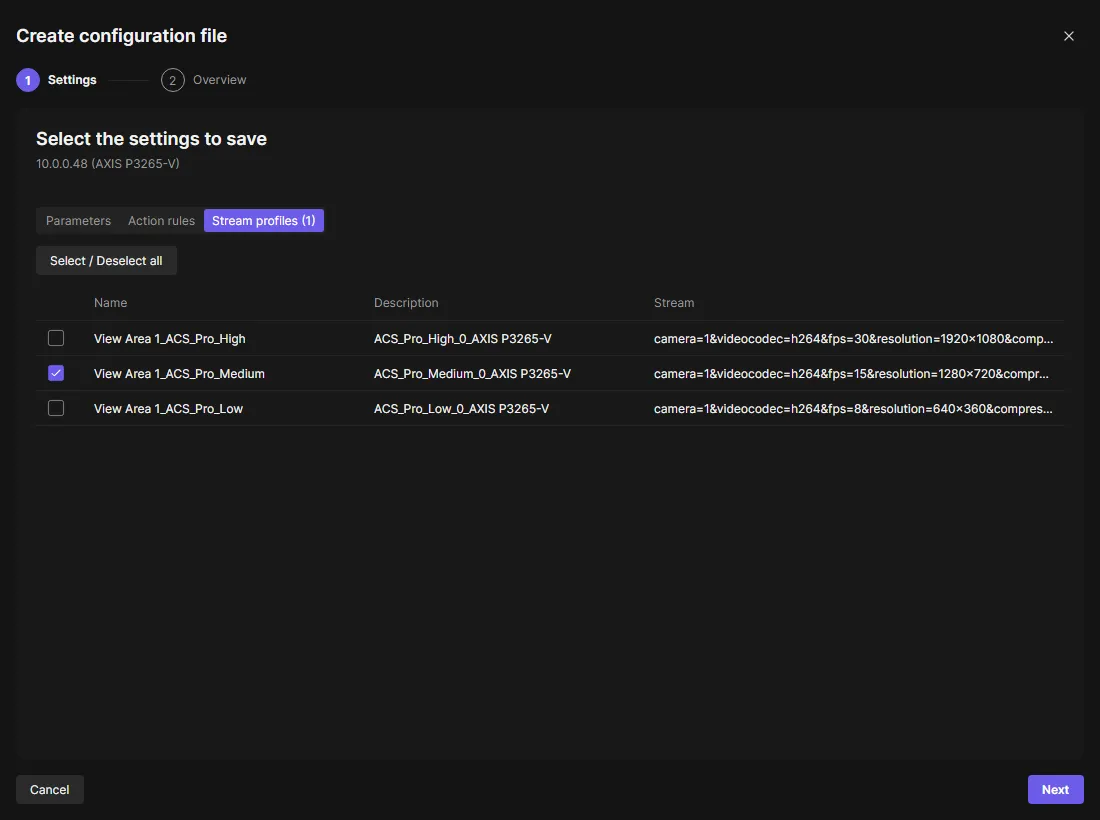
Right-click one device and choose Maintenance > Create configuration file. Check the parameters, action rules and stream profiles to save, click Next, then Save. The file has the format of AXIS Device Manager, so ADM can use it too.