Action Rule Editor
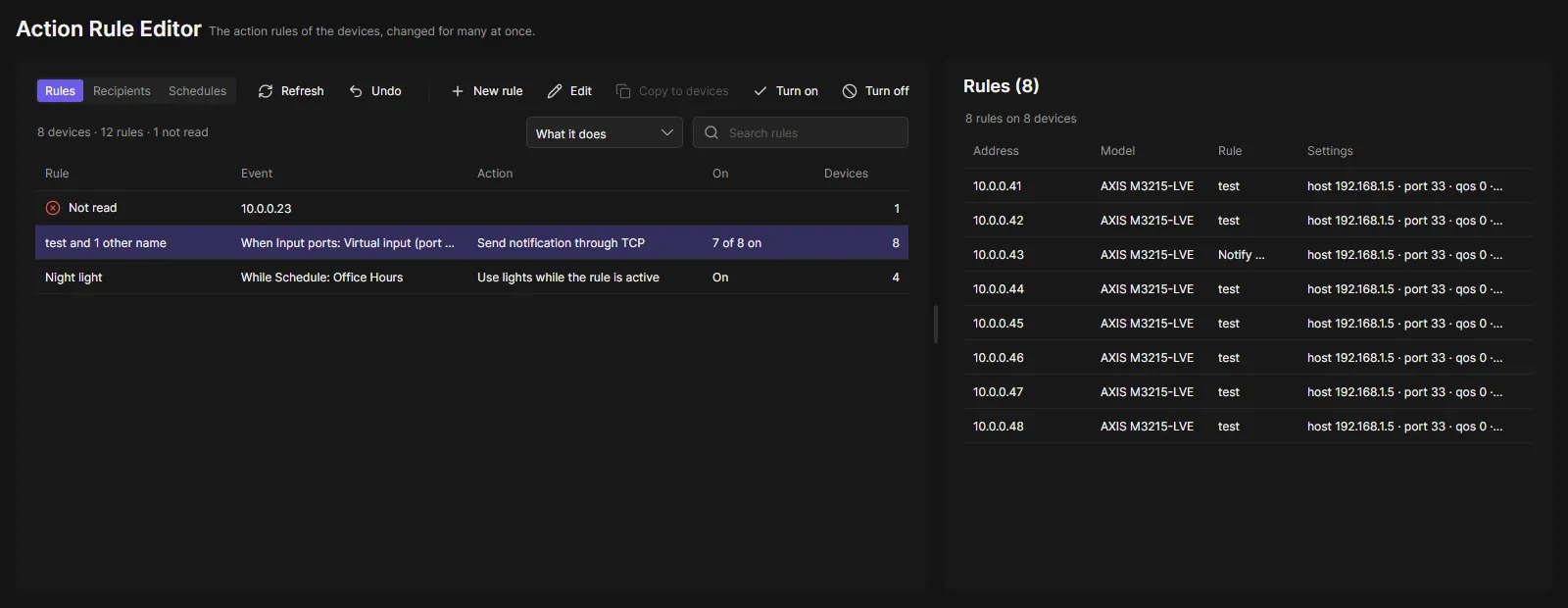
The Action Rule Editor shows the action rules of your cameras (Events > Rules in the camera’s web interface) in one page and changes them on many cameras at once. Example: 500 cameras “Send notification through TCP” should “Send notification through TCP while the rule is active”. One edit changes them all, and each camera keeps its own message.
These are the rules that run on the cameras themselves, not OADM’s event rules.
Find the rules
Section titled “Find the rules”Choose the cameras with Choose devices: all devices, tags, or single cameras. The page starts with the devices selected on the Devices page, else with your last choice. OADM reads the rules of those cameras, and again with Refresh. Rules that do the same (the same event and the same action) are one row, even when their names or settings differ. What it does can also group by name, action or event. Select a row to see its rules on the right, one per camera; select some of them to change only those.
Change rules
Section titled “Change rules”- Select the rows (or the rules on the right) and choose Edit.
- Check what to change: name, on or off, the event, the schedule, run once or while the event is active, the action, the recipient and each setting of the action. What you do not check stays as each camera has it.
- Choose Apply. Each camera gets its own task in the tasks pane below the page.
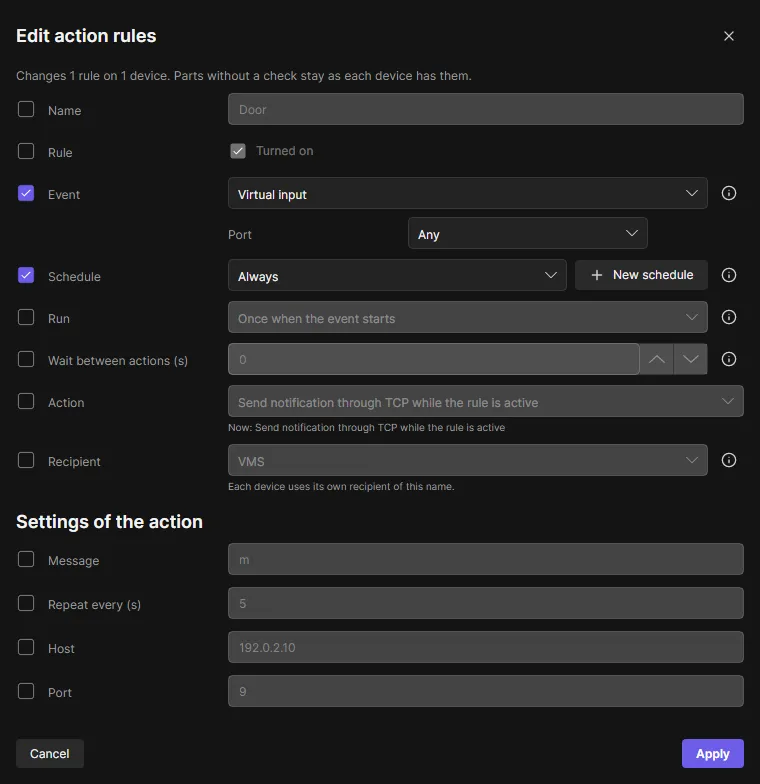
- Recipient: the action takes the settings of each camera’s own recipient of that name, password included.
- A rule that changed on the camera since OADM read it is skipped. Choose Refresh and try again.
- Turn on, Turn off and Delete work on the selected rules the same way.
New rules and copies
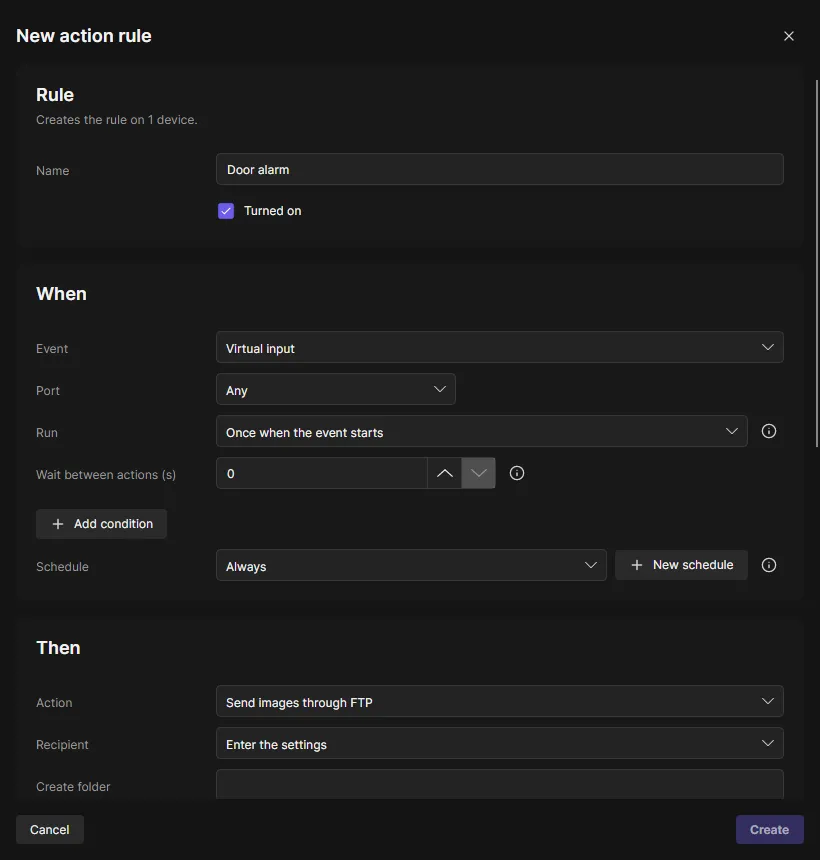
Section titled “New rules and copies”- New rule: choose the cameras, then the event (from the events those cameras offer), once or while it is active, further conditions, a schedule, the action and its settings. Each camera gets the rule; a camera that has the same rule already keeps it.
- Copy to devices: copies one rule to other cameras, with the same form as Edit for what the copies get. The schedules the rule uses come along.
Recipients and schedules
Section titled “Recipients and schedules”The Recipients and Schedules tabs list them the same way: New, Edit, Copy to devices and Delete. Changing a recipient can also change the rules that send to it. A schedule that rules use is only deleted together with those rules. The built-in schedules of the cameras are never changed or deleted.
Undo lists the changes of the last 30 days. Undo puts back what a change did, on every camera where the rule is still as the change left it; a rule changed again since stays as it is.
Good to know
Section titled “Good to know”- Works on AXIS OS 10, 11 and 12. On AXIS OS 12 a rule is changed in place; on older AXIS OS it is created again and gets a new id.
- Passwords of actions and recipients stay on the OADM server; the page shows only whether one is set.
- Actions that need something of the camera itself (an SD card, a network share, a recording group, an audio clip) need
that camera’s value, for example
SD_DISK. - OADM never creates rules that erase the camera’s configuration.