Compliance
Compliance in the navigation, right below Devices, shows which devices need attention. It is off until you click Enable Compliance Checks on the page. Then it lists the devices OADM cannot reach or log in to. Add your own checks, for example “Object Analytics must run on the parking cameras” or “every device matches our base configuration”. Turn off compliance stops the checks and removes their results; your checks stay.
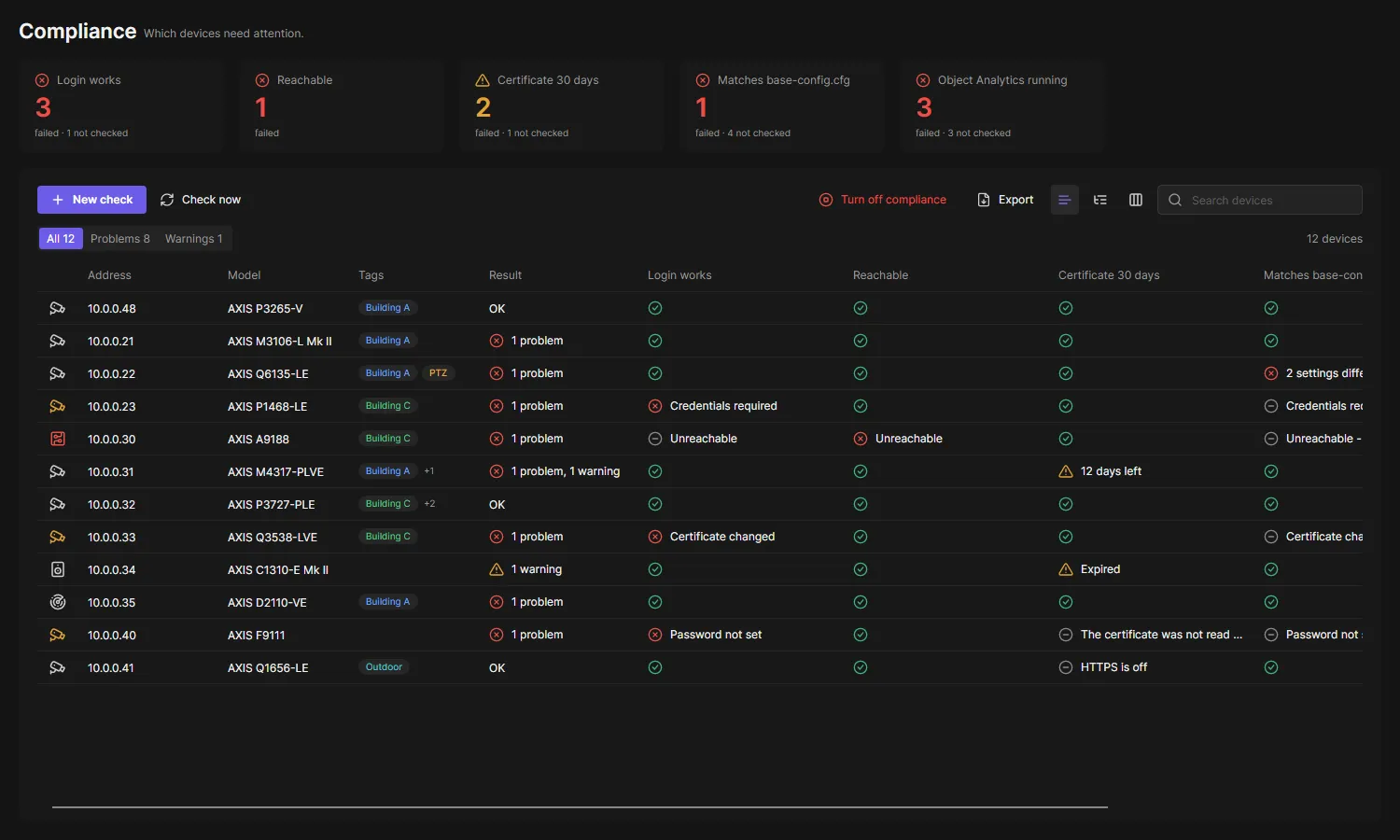
- Cards: one per check with the number of devices that fail it. Click a card to see those devices; Show all devices goes back. The pen and the bin on a card change or delete the check.
- All, Problems, Warnings: the devices by their worst result.
- Columns: one per check, with the result next to the icon. The text button in the toolbar shows only the icons; hover an icon to see the result, since when it holds and when it was checked. Choose columns turns columns off, Group by tag shows a group per tag.
- Check now checks the selected devices again, or all devices. They show Checking… until the result is in.
- Export saves the list as a CSV file.
Add a check
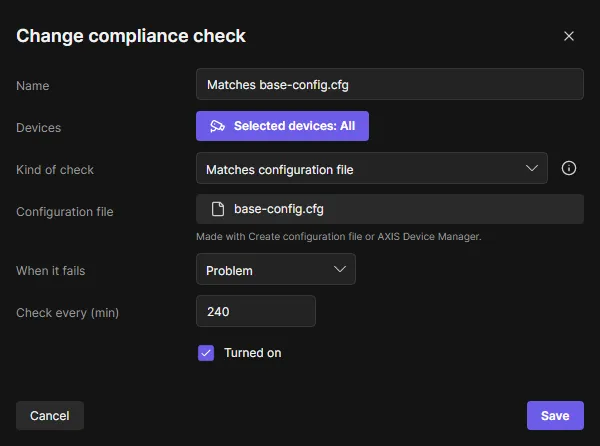
Section titled “Add a check”- Click New check and enter a name.
- Choose the Devices: all devices, tags or single devices.
- Choose the Kind of check and fill in its settings.
- Choose When it fails: Problem (red) or Warning (amber).
- For checks that read the devices, set Check every (min).
- Click Save. OADM checks the devices at once.
| Kind of check | Fails when |
|---|---|
| Reachable | The device does not answer. |
| Login works | OADM cannot log in (Credentials required, Password not set, Certificate changed). |
| Certificate | The HTTPS certificate expired, has fewer days left than you set, or is not trusted. |
| Firmware | The device runs an older AXIS OS than you set. |
| Application running | The application is not installed or not running. Optional: a minimum version and a valid license. Click Read from device to choose the application from a device that has it. |
| Matches configuration file | A setting of the file differs on the device. Make the file with Create configuration file or use one from AXIS Device Manager. Addresses, device names and passwords are not compared. |
| SD card | The device has no SD card, the card does not work, or it has less free space than you set. Needs the Edge storage plugin turned on. |
Reachable and Login works are added when you turn compliance on. You can change or delete them like any other check; New check adds them again.
A check that reads the devices skips devices OADM cannot reach or log in to. They show Not checked; the Reachable and Login works checks already count them.
In the device list
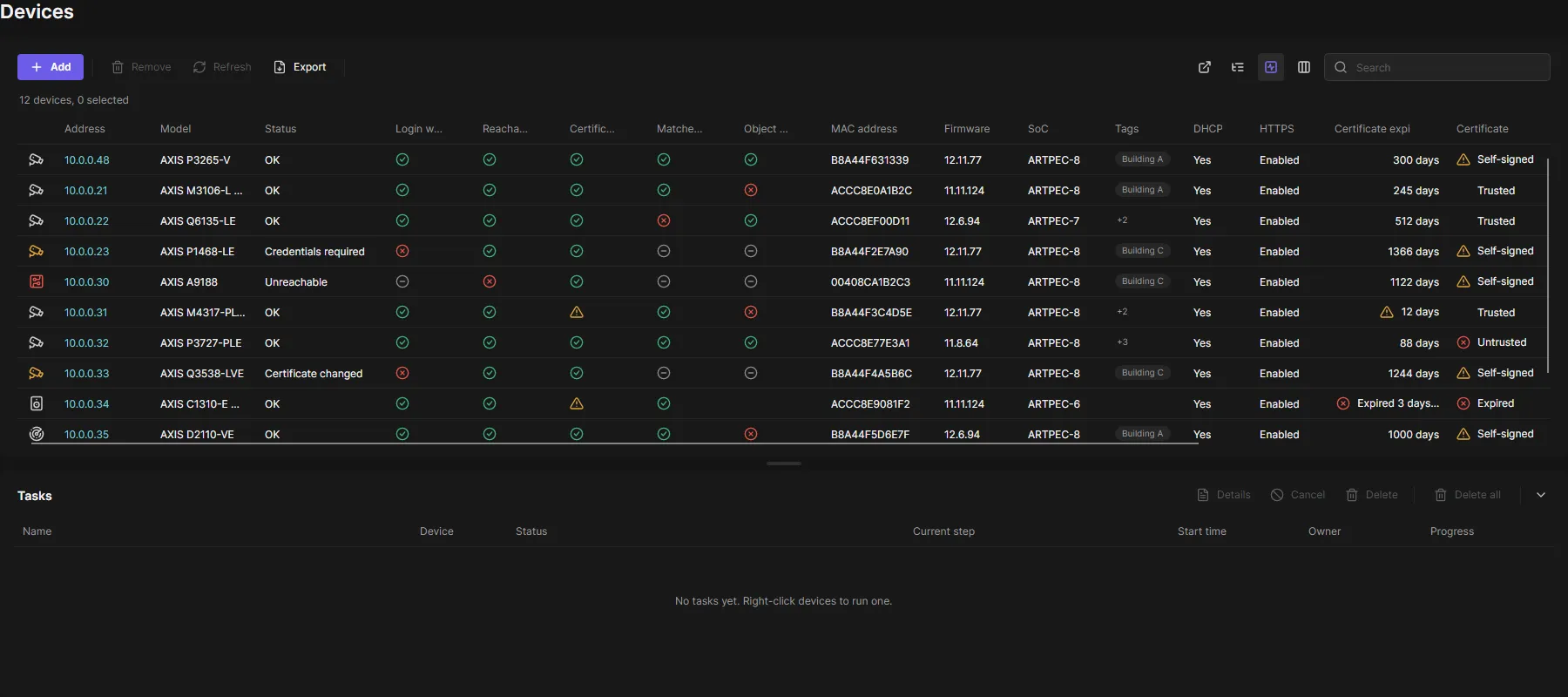
Section titled “In the device list”Turn on the Compliance column with Choose columns on the Devices page. It shows the worst result of each device. While it is on, Show each compliance check in the toolbar shows one column per check instead. While compliance is off the column cannot be turned on.
Get an email when a check fails
Section titled “Get an email when a check fails”Every check is an event of the event rules: Compliance: <check name> is on for a device while the check fails on it. Use it as the trigger of a rule with Send email or Send HTTP request.
- See compliance: see the page and use Check now (Operator and Viewer).
- Change compliance checks: add, change and delete checks (Administrators; you can give it to other roles).