OADM Site Node app
The app shows the node’s link to the server and changes its settings. Every change asks for administrator rights (UAC on Windows, your password on Linux). Reading the state and the pairing code needs none.
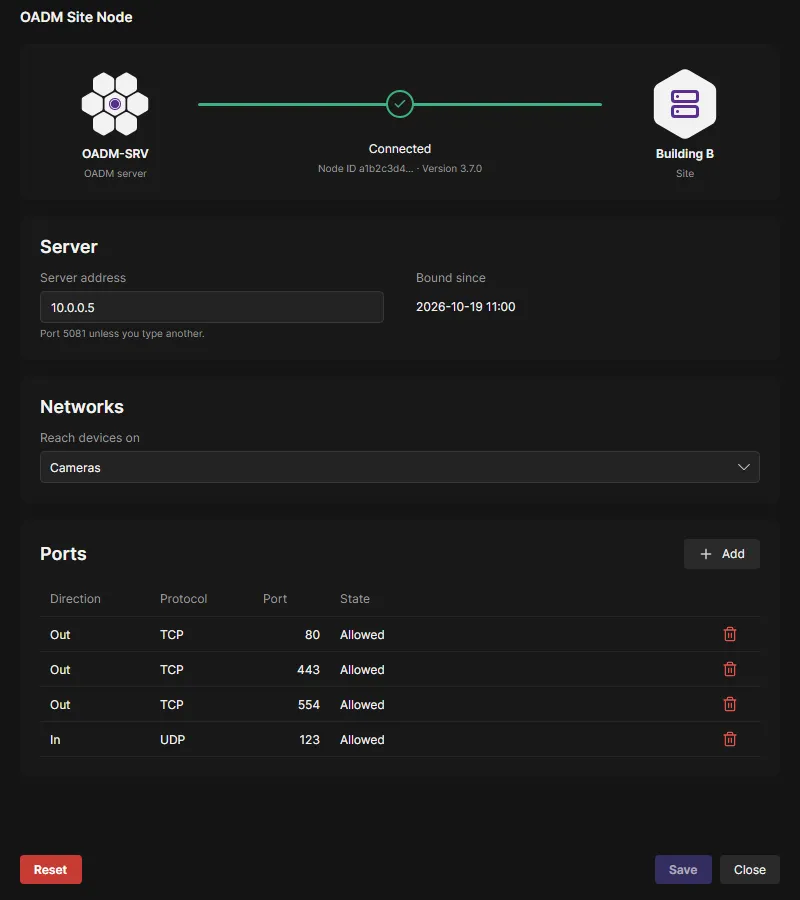
The link at the top
Section titled “The link at the top”The OADM logo stands for the server, the hexagon for this node. The line between them:
| Line | Meaning |
|---|---|
| Grey | No server address yet, or still connecting. Also while binding is closed. |
| Purple, Ready to bind | Connected, not bound yet: bind it on the Sites page with the pairing code. |
| Green, Connected | Connected and bound. |
| Red | The server cannot be reached, the connection was lost, or the service is not running. The reason stands below the line. |
Below the line: the binding (how long binding stays open), the node’s ID and version, ports the server asks for and relays that do not run (for example “UDP 123 is used by another program”).
Server
Section titled “Server”Server address: the server’s name or IP address, port 5081 unless you enter another one. Click Save.
Next to it, while the node is not bound, the Pairing code with a copy button: a new code every 10 minutes, the last minute counts down in seconds. Once bound, Bound since stands there instead.
Networks
Section titled “Networks”Reach devices on: All cards (default), or the network cards you tick, each with its addresses. Tick only the camera cards when the node’s computer also sits in an office network. The node never connects to an address outside these networks.
Networks behind a router, for example a camera network 10.20.0.0/16, are added on the command line:
oadm-site-node networks add 10.20.0.0/16.
The Ports table lists the ports the node may use:
- Out: the device ports the node may connect to. TCP 80, 443 and 554 by default.
- In: ports the node opens at the site for the server, for example UDP 123 when the NTP server serves the cameras there. Empty by default.
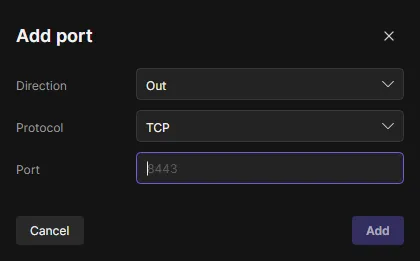
Ports the server asks for come first, marked Requested, for example a camera on TCP 8443: Allow or Dismiss. Add right of the title adds a port. When the server no longer needs a port it asked for (the NTP server no longer serves this site), the node removes it again; ports you added stay.
Reset (bottom left): the node tells the server, forgets it and gets a new identity and pairing code. Bind it again on the Sites page and move the devices with Replace with (see Sites page).
Without a desktop
Section titled “Without a desktop”On a computer without a desktop, use the command line. Changes need administrator rights (sudo on Linux).
| Command | Does |
|---|---|
oadm-site-node status |
State, server, connections |
oadm-site-node pairing-code |
The pairing code and until when it is valid |
oadm-site-node server oadm.example.com |
Connect to this server; shows the pairing code while not bound |
oadm-site-node allow-binding |
Binding open for another 24 hours, a new code |
oadm-site-node networks |
Network cards and extra networks; card <name> on|off, all on, add, remove change them |
oadm-site-node ports |
Allowed and requested ports; allow, remove, dismiss change them |
oadm-site-node accept-server |
Let the server’s new identity bind with the pairing code |
oadm-site-node log |
The newest connections through the node |
oadm-site-node reset |
Forget the server, new identity and code |
Good to know
Section titled “Good to know”- Many live connections: every lasting connection through a node (device events, live video, the web interface)
uses one outgoing port of the node’s computer. Windows has 16,384 of them by default, Linux about 28,000. For more,
widen the range: on Windows
netsh int ipv4 set dynamicport tcp start=10000 num=55535, on Linux the settingnet.ipv4.ip_local_port_range. - Connection log: the node keeps the last connections through it in its data folder for 30 days;
oadm-site-node logshows the newest. - Data folder:
%ProgramData%\OADM Site Nodeor/var/lib/oadm-site-node: the node’s identity, server and settings. No passwords, no device data.