Sites page
The Sites page (navigation rail, below Compliance) lists every site with its state, node address, devices, response time, connections, version and when it was last seen. Everyone with See sites sees it; changes are for administrators.
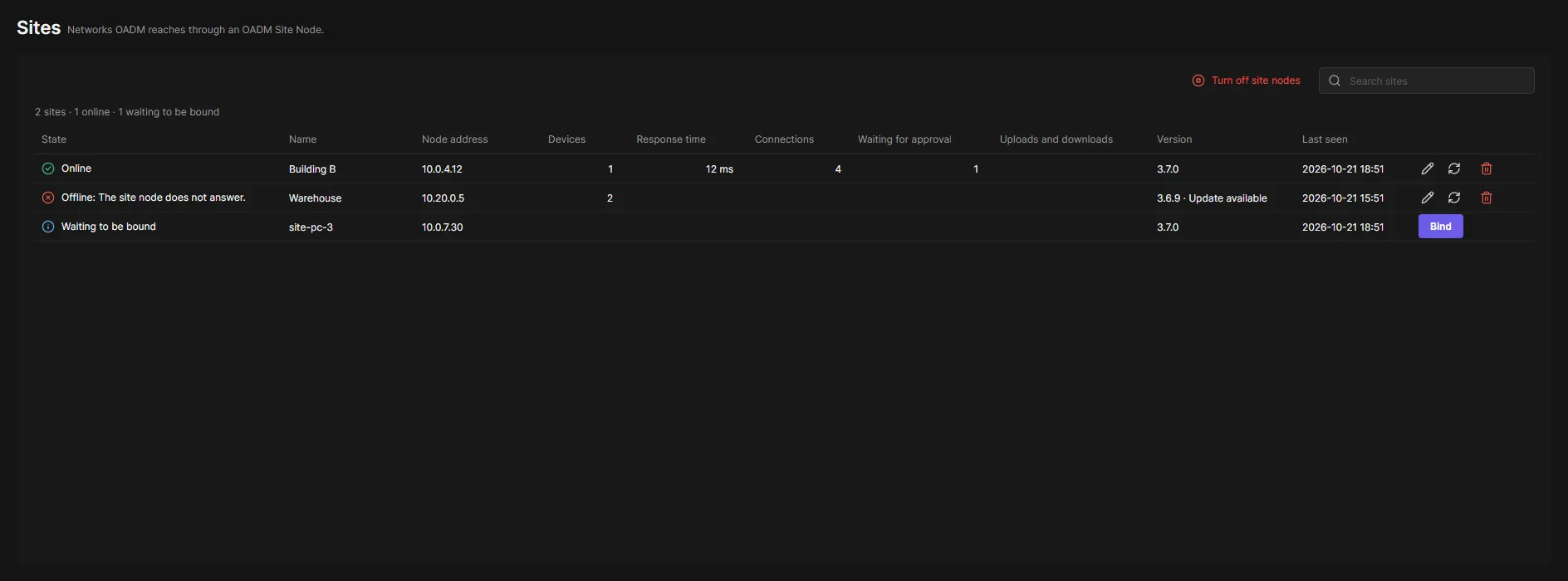
Accept site nodes
Section titled “Accept site nodes”Accept site nodes lets nodes connect to the server on TCP 5081. On Windows the server opens the port in the firewall for Domain and Private networks while it is on. When another program uses TCP 5081, the page says so and site nodes stay off.
Turn off site nodes stops accepting nodes and disconnects the connected ones. Their devices show Site offline until you click Accept site nodes again. Sites and devices stay.
States
Section titled “States”| State | Meaning |
|---|---|
| Online | The node answers. Its devices work like every other device. |
| Offline | The node does not answer. Its devices show Site offline; nothing is sent to them. |
| Waiting to be bound | A node connected that is not bound yet: click Bind. |
| Not bound | The node was reset. Replace or remove the site. |
A node that answers again counts as online after a minute without dropouts, so a flaky link does not flip its devices back and forth.
Manage sites
Section titled “Manage sites”- Bind: a node waiting to be bound becomes a site. Enter the site name and the pairing code from the node app.
- Rename: a new name for the site. The node app shows it too.
- Replace with: moves the devices of a site to another site that is online. Each device must answer there first; devices that do not stay where they are.
- Remove site: with Keep devices checked, the devices stay and show Site offline. Later Replace with moves them to another site, or Remove devices removes them. Unchecked, the devices are removed with their logins and tags. The node forgets the server; when it is offline, click Reset in the node app.
A node was reset
Section titled “A node was reset”Reset in the node app: the node tells the server, forgets it and gets a new identity and pairing code. The old site shows Not bound and its devices Site offline. The node connects again and waits to be bound.
- Click Bind on the node’s row. The name starts as the node’s name, with “(2)” when the old site has it. Enter the pairing code.
- On the old site’s row, click Replace with and choose the new site. Its devices move.
- Or click Remove site on the old site’s row instead.
When the node cannot reach the server at Reset, the old site shows Offline instead.
The server’s key was replaced
Section titled “The server’s key was replaced”The server proves itself to its nodes with a key of its own. When the server’s key is replaced (the warning “The server’s key was replaced” in OADM), the nodes no longer know the server and its sites show Offline.
- In the node app, check the server and the fingerprint the app shows, then click Accept new server identity (administrator rights). The pairing code appears.
- On the Sites page the node waits to be bound again. Click Bind: the site keeps its name. Enter the pairing code.
The site and its devices stay as they were. Accept alone binds nothing: only the pairing code does.
Devices at sites
Section titled “Devices at sites”- The device list’s Site column shows where a device is; the search and the export include it.
- Devices that move are followed: a device whose address changed is found again through every site.
- Open web interface and the address link of a device at a site open it in Web View (turn on the Web View plugin).
- Event rules have the events Site offline (per site) and Any site offline, and the placeholder
{site}. - Roles: See sites (Operator and Viewer by default); a role can have Sites as its start page.