Applications
The Applications page shows the applications (ACAP) of the chosen devices: which application runs where, in which version and with which license. Install, start, stop or remove them and install their licenses on many devices at once.
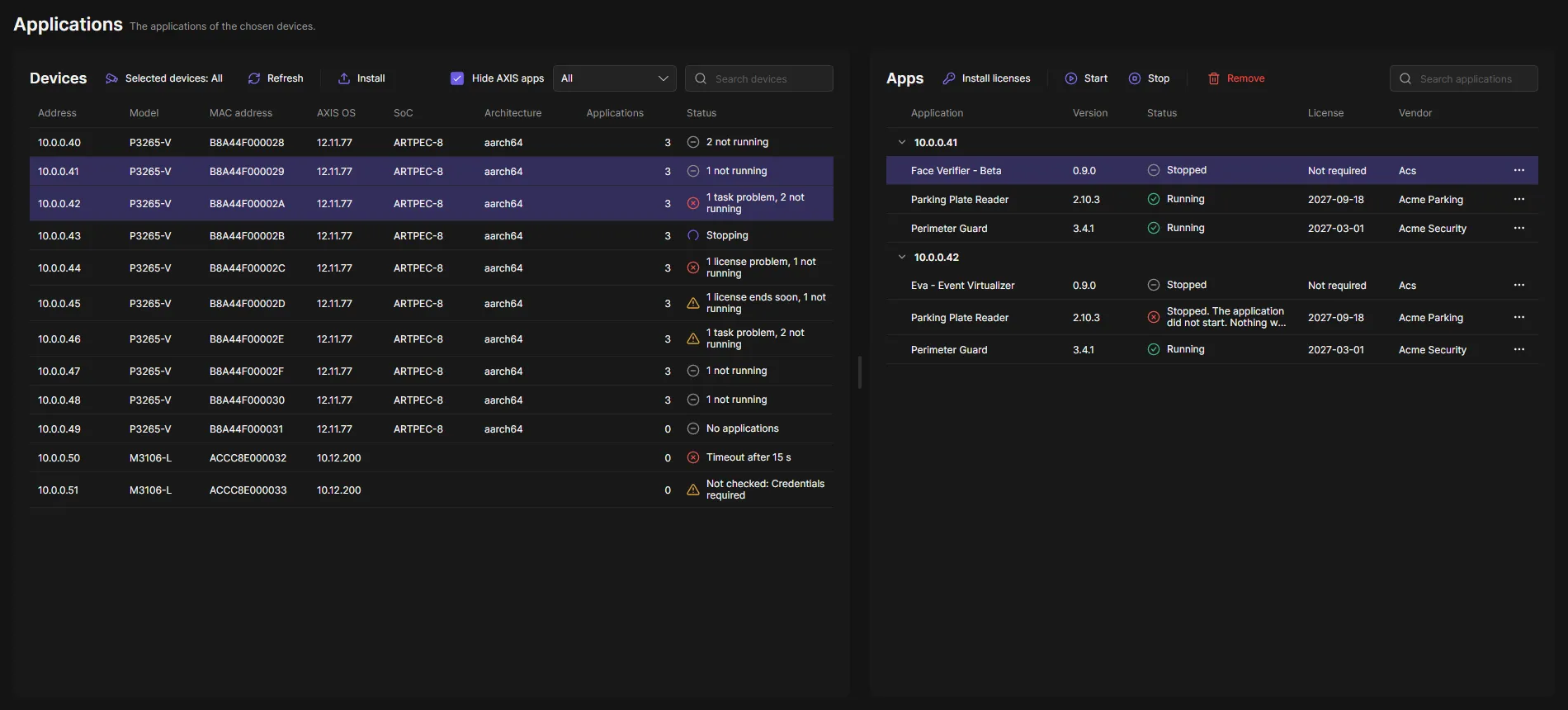
See your applications
Section titled “See your applications”- Open Applications in the navigation rail and choose the devices with Choose devices: all devices, tags or single devices. OADM reads their applications. Refresh reads them again.
- The Devices card on the left shows one row per device: address, model, MAC address, AXIS OS, SoC, architecture, how many applications it has and what needs attention (“1 license problem, 2 not running”).
- Select devices to see their applications in the Apps card on the right, with the status and the license: the end date of a valid license, Valid, Not required, Missing or Invalid. A license that ends within 5 days is marked. With several devices selected, the applications are grouped by device.
Drag the line between the two cards to give one of them more room.
Hide AXIS apps (on by default) hides the applications that come with AXIS OS and every application with AXIS in its name. The filter next to it shows only devices with applications that do not run, with a missing license, with a license that ends soon, or the devices that could not be read. Search devices finds devices by address, model, MAC address, AXIS OS, SoC or architecture, and by their applications. Search applications in the Apps card finds applications, vendors and versions of the selected devices.
Install applications
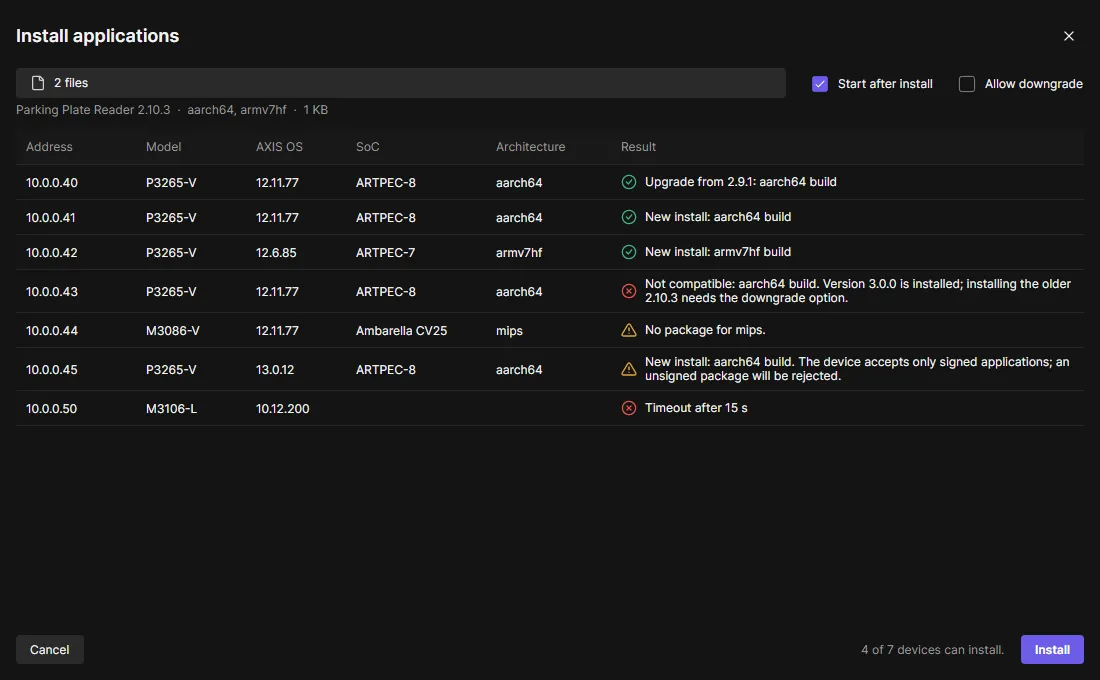
Section titled “Install applications”- Select the devices in the Devices card and click Install.
- Click Choose files and choose one
.eapfile, or one per architecture of the same application. - Each row says whether the device can install it: a new install, an upgrade, or why not, for example “No package for mips.” or a device that accepts only signed applications. Devices that cannot install it are skipped.
- Keep Start after install on if the application should run right away. Turn on Allow downgrade to install an older version.
- Click Install. The tasks pane below the page shows the tasks.
Install licenses
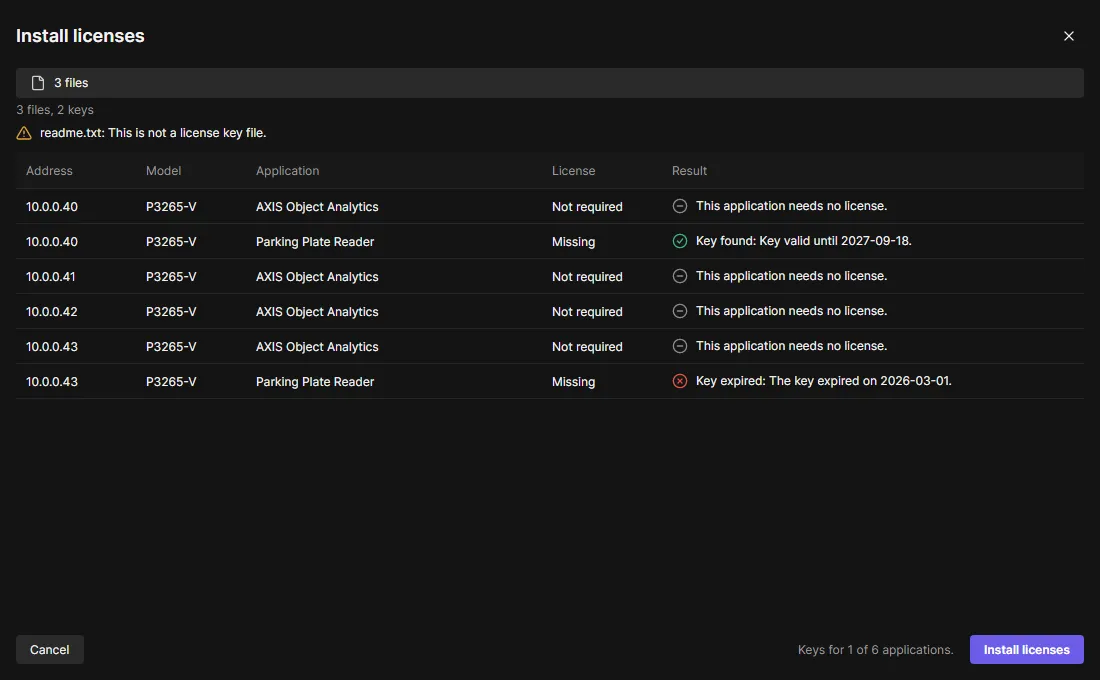
Section titled “Install licenses”- Select the applications in the Apps card and click Install licenses.
- Click Choose files and choose the license key files, or a ZIP of them.
- Each row says whether a key fits that device and application.
- Click Install licenses. Only rows with a key get one.
Start, stop and remove
Section titled “Start, stop and remove”- Start, Stop and Remove in the Apps card act on the selected applications. They ask first, then run as tasks. Only the rows of those applications show Starting or Stopping meanwhile.
- OADM reads each device again when its task ends. Your selection stays.
- When a task fails or ends with warnings, the row’s Status shows the new state followed by the task’s message, for example “Stopped. The application did not start.” It stays until you click Refresh or choose devices again.
Log and settings
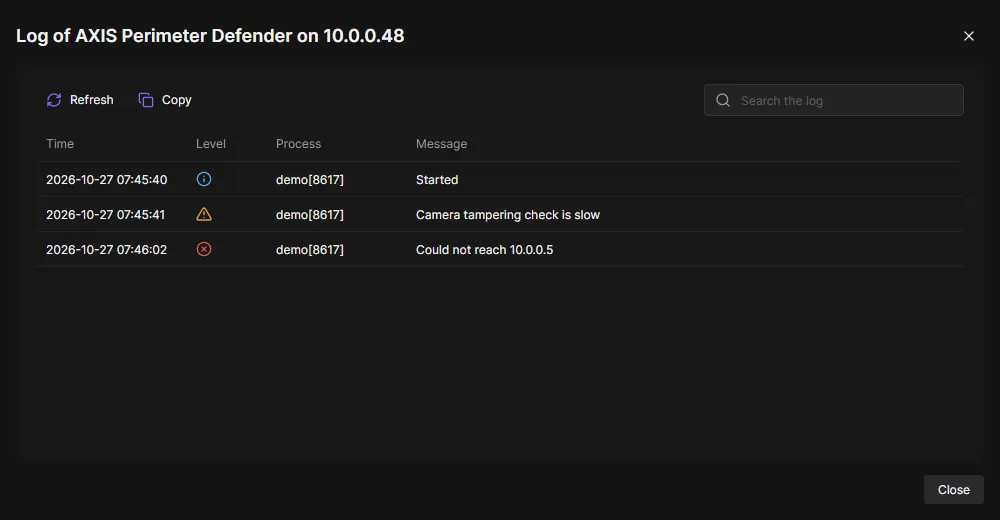
Section titled “Log and settings”The ⋯ menu of an application shows Settings or Open app page, whichever the application has, and always Show log.
- Show log: the log lines of that application on the device, newest last, with search and Copy. Level shows an icon for errors, warnings and information; point at it to see the level.
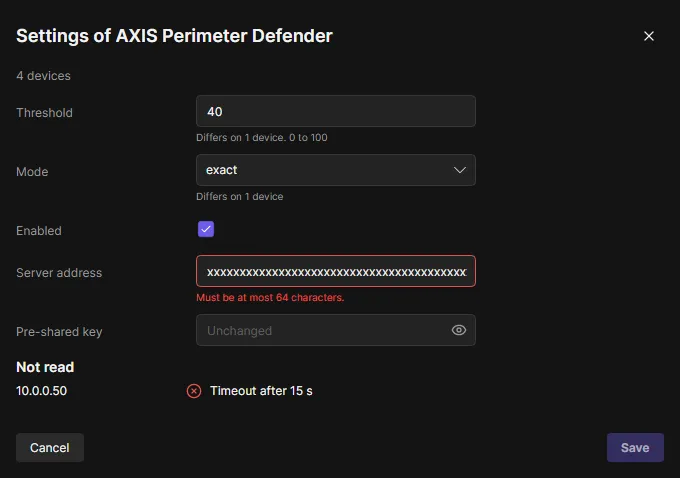
- Settings: the settings the application offers on that device, or on all selected devices with it when the row is selected. Where the devices differ, the field says on how many. Passwords are never shown: leave the field empty to keep them. Save changes only what you changed, as a task.
- Open app page, for an application without settings here that has its own page: opens that page in Web View. While Web View is off, the entry is greyed out: an administrator turns on Web View on the Plugins page.
Good to know
Section titled “Good to know”- OADM reads the applications only when you choose devices, click Refresh or a task of the page ends. The list stays until you log out or the server restarts.
- Devices with a problem (for example Credentials required) are not read; their row says why.