EST server
The EST server gives your Axis cameras their certificates for HTTPS, IEEE 802.1X, MQTT and RTSPS, and the cameras renew them by themselves before they expire. You set up each camera once; after that no task has to run again when a certificate gets old. The certificates come from the CAs of the PKI page.
What you need
Section titled “What you need”- An active OADM PRO license or trial.
- A certificate authority on the PKI page (OADM creates one on the first start).
- Cameras with AXIS OS 12.10 or later and an Axis device ID: the certificate Axis puts into every camera with AXIS Edge Vault at the factory. Cameras without one cannot use the EST server.
- The cameras must reach the OADM server on TCP 9454 (you can change the port). On Windows the installed server opens the port in the Windows firewall while the EST server runs; on Linux and macOS open it yourself if a firewall runs.
- Cameras at a site work too: they reach the EST server through their site node (see Cameras at sites).
Turn it on
Section titled “Turn it on”- Open PKI in the navigation (group Security) and the tab EST server.
- While the server is off the tab says so in the middle, with Turn on. Without an active license or trial it says “The EST server needs OADM PRO” instead: an administrator can click Start 30-day trial there (once per server).
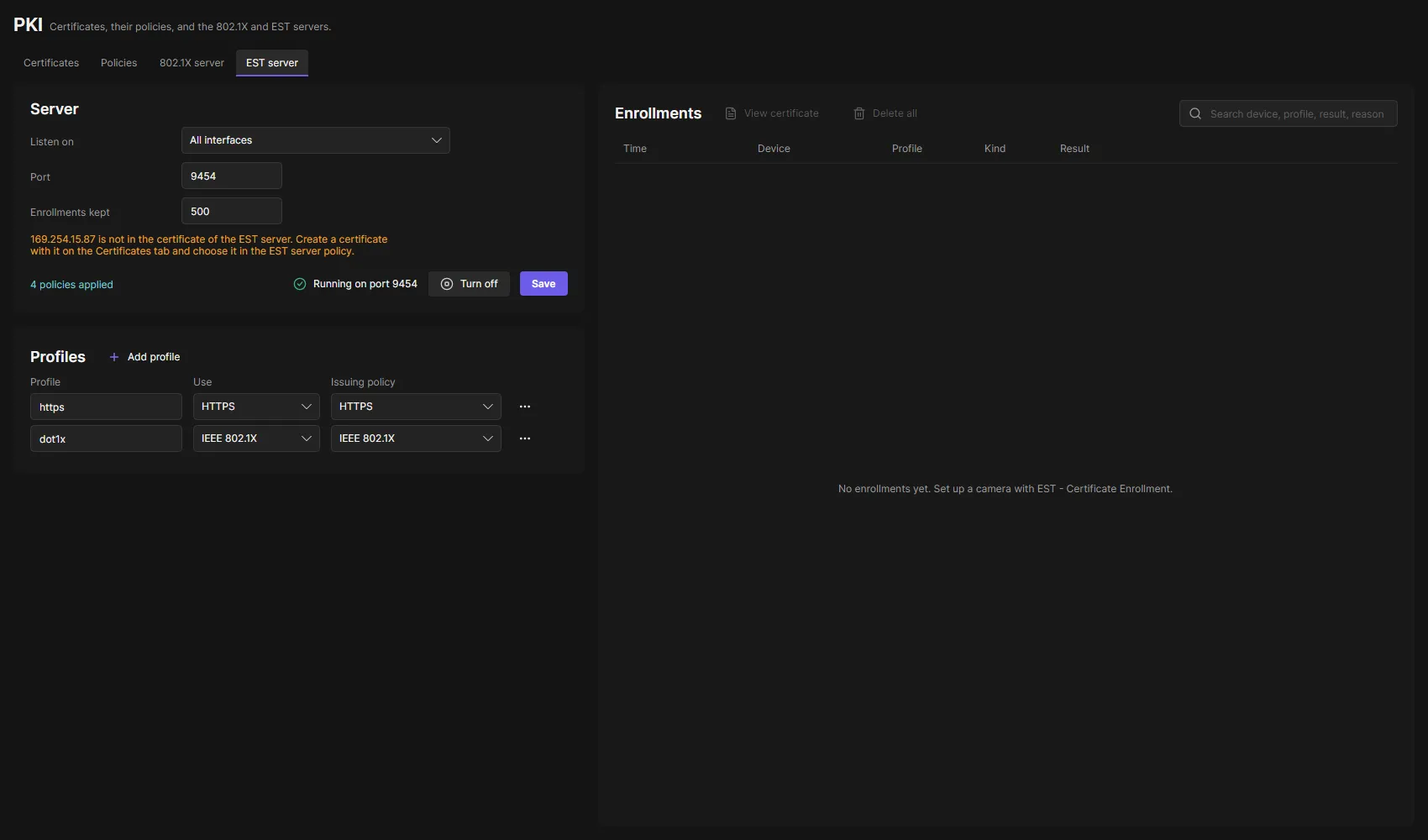
- The status left of Save shows Running on port 9454 when it is ready.
Turn off next to Save stops the server; your settings and the enrollments stay. A server updated from OADM 4.1 keeps the EST server on if it was on there, and its profiles as they were; their certificates follow the built-in issuing policies.
The tab
Section titled “The tab”Server
Section titled “Server”- Listen on: the network interface the cameras reach the server on, or All interfaces (default). Cameras set up later get this interface’s address. When the interface is gone, the status says so and the server listens again once it is back.
- Port: the TCP port the cameras connect to, 1025 to 65535 (default 9454). After a change set up the cameras again, so they use the new port.
- Enrollments kept: how many enrollments the list keeps, 100 to 5,000 (default 500).
- 4 policies applied, the link next to Save: the server’s certificate, which cameras may enroll and which CAs they sign in with are policies on the PKI page (EST server, Enrollment and EST sign-in CA). Point at it to see them; a click opens them.
A warning below the fields says when no camera can enroll, or when an address of this server or of a site node is not in the EST server’s certificate. A camera refuses a server whose certificate does not name the address it connects to. See The server’s certificate.
Profiles
Section titled “Profiles”A profile is one kind of certificate. The cameras ask for it by its name. Two profiles are ready-made:
| Profile | Use | What the camera does with it |
|---|---|---|
https |
HTTPS | The certificate of its web server. |
dot1x |
IEEE 802.1X | The certificate it uses for network access. |
Add profile adds one for MQTT or RTSPS; each use can have one profile.
- Profile: the name, 1 to 32 letters, digits or
_. - Use: HTTPS, IEEE 802.1X, MQTT or RTSPS.
- Issuing policy: the certificate policy of the PKI page the certificates get their CA, days and key from: an HTTPS certificate policy for HTTPS and RTSPS, an IEEE 802.1X certificate policy for IEEE 802.1X and MQTT. By default the built-in one of its kind. The camera creates a key of the policy’s kind and signs in with the device ID of the same kind.
- ⋯ > Remove takes a profile away after a confirmation (with Save); cameras set up with it then get nothing from it.
A camera holds at most two profiles, also counting profiles of another EST server that stay. When not all fit, the set-up uses those that fit, in the order of this list; when none fits, the camera is not changed.
Errors show below the fields. Save applies the changes at once.
Enrollments
Section titled “Enrollments”Every request of a camera that OADM manages: time, device, profile, New or Renewal, and the result: Valid until a date, or the reason it was refused. New rows appear while the tab is open. The list keeps the newest entries up to Enrollments kept.
- Search finds a device, profile, kind, result or reason.
- View certificate (or a double click) shows the certificate an enrollment issued.
- Delete all (red, with a confirmation) empties the list for every client.
Not renewed
Section titled “Not renewed”Shows only when a camera did not renew a certificate in time: device, profile, valid until, and Not renewed or Expired. See Renewals. The certificates themselves are on the cameras: the PKI page and the device details show them.
The server’s certificate
Section titled “The server’s certificate”The cameras check the EST server with the certificate its EST server policy names, one certificate for the server and every site (see Server certificates). When you add a site, the server gets another address or you choose another interface in Listen on, the tab warns that the address is not in the certificate. Choose a certificate with every address in the EST server policy, then set up the cameras again, so they trust the CA of the new certificate.
Set up cameras
Section titled “Set up cameras”- Select the cameras on the Devices page, right-click and open Security.
- Click EST - Certificate Enrollment. The entry shows with OADM PRO only. The dialog shows the enrollment profiles of the first camera; with several cameras, choose one at the top right. When some of the cameras have IEEE 802.1X on, the dialog asks whether to replace their network access certificate too (see below).
- Click Set up. When a camera’s clock is behind, OADM asks first: its new certificate is not valid yet on the camera.
- The dialog stays open and shows how the set-up goes, then the result. The tasks pane shows each camera as one task with its steps.
For each camera OADM:
- Checks that it can: AXIS OS 12.10 or later, the camera’s certificate settings, its Axis device ID, at least one profile it supports, an Enrollment policy that holds it, and the camera’s address in the EST server’s certificate. Otherwise the task ends with Nothing was changed.
- Installs the CA certificates of the EST server’s certificate on the camera, so the camera trusts the EST server. CA certificates already there are reused.
- Adds the profiles to the camera, one after the other: this server’s address and port, the device ID to sign in with,
the use, and the names the certificate gets (the camera’s address and
axis-<serial>.local). - Waits until the camera has its certificate (usually a few seconds, at most two minutes).
- With the
dot1xprofile and IEEE 802.1X on: installs the RADIUS server CA of the profile’s IEEE 802.1X policy and sets it in the camera’s IEEE 802.1X settings, so the camera checks the RADIUS server with the right CA. - With HTTPS: OADM keeps talking to the camera with its new certificate. The web server of the camera restarts for a moment while it switches.
Running the task again is safe: a camera that already has the same profiles is not changed. Profiles OADM did not add stay on the camera, unless they serve the same use as one of OADM’s.
The dialog
Section titled “The dialog”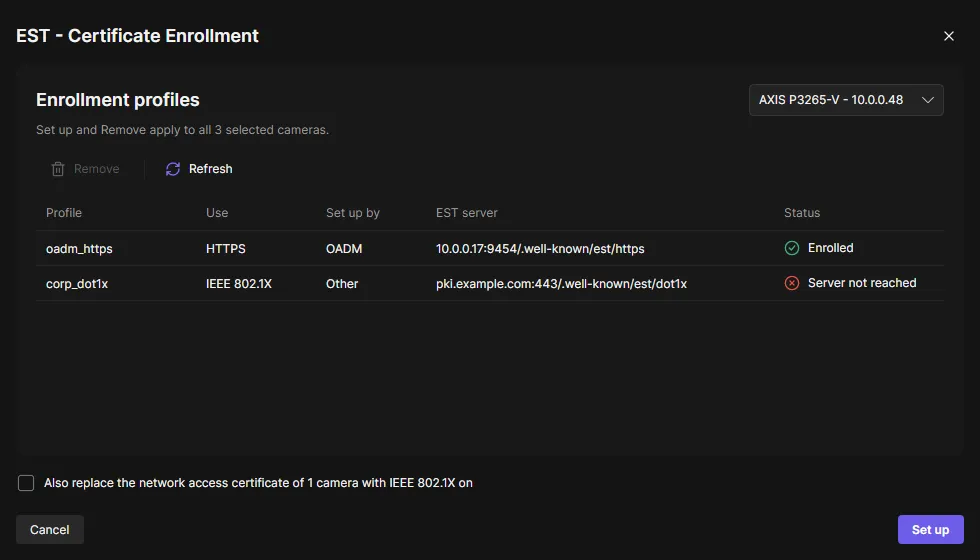
| Column | Meaning |
|---|---|
| Profile | The profile’s name on the camera. OADM’s start with oadm_. |
| Use | HTTPS, IEEE 802.1X, MQTT or RTSPS. |
| Set up by | OADM, or Other for a profile of another EST server. |
| EST server | Where the camera gets and renews the certificate. |
| Status | Enrolled, No certificate (the camera reached the server but got none) or Server not reached. |
To stop renewals, select a profile and click Remove, then Remove again in the confirmation. It is removed from every selected camera that has it, also a profile of another EST server. The certificates stay on the cameras until they expire.
Setting up and removing need the permission Set up certificate enrollment (Permissions page, roles). Administrators have it; give it to operators who should set up cameras.
Cameras at sites
Section titled “Cameras at sites”Cameras at a site cannot reach the server. They talk to their site node instead, and the node passes the connection on:
- When you set up the first camera of a site, the node opens the EST port (TCP 9454) at the site. The OADM Site Node app lists it under Ports as Requested: click Allow there. Until then the tab shows “EST server at (site name): waiting for approval in the OADM Site Node app” and the set-up waits; after two minutes it ends with that reason, and running it again after Allow is enough.
- The camera gets the node’s address in its site network as EST server. That address must be in the EST server’s certificate: the tab warns when it is not (see The server’s certificate).
- A camera at a site only enrolls through its own site. Renewals work while the node is online; when it is offline, the camera tries again later.
- When a site is removed, the node gives the port back.
Renewals
Section titled “Renewals”The camera renews each certificate by itself halfway through its validity (a certificate of 1 year after about six months), without OADM running a task. When that fails, it tries again every day. It signs in with its current certificate or its device ID and gets a new certificate with the same names. A renewed HTTPS certificate does not show Certificate changed (see Use the certificates on devices).
Who gets a certificate
Section titled “Who gets a certificate”The EST server only answers cameras that:
- sign in with a certificate of a CA an EST sign-in CA policy names: by default their Axis device ID for new certificates, and a certificate of OADM Root CA for renewals. To renew, a camera may also sign in with its current certificate from OADM, whichever CA of the PKI page issued it (also a CA you imported with its key),
- are managed by OADM: the serial number in the device ID must be a device in the device list, and
- are in an Enrollment policy that allows the profile (by default “All devices”, every profile). A camera no Enrollment policy holds is refused; a profile its policy does not allow is answered like a profile that does not exist, and the Enrollments list names the policy.
A genuine Axis camera that OADM does not manage gets nothing. OADM sets the names in every certificate itself; what the camera asks for does not count. No password or code is needed. A certificate deleted or replaced in OADM renews nothing.
Event rules
Section titled “Event rules”The EST server adds three events to the event rules:
- Certificate enrolled: a camera got a certificate (profile, New or Renewal).
- Enrollment refused: the EST server refused a camera OADM manages (profile, reason).
- Certificate not renewed: a camera did not renew a certificate within 2 days after the halfway point of its validity (profile, valid until). Not for profiles you removed in EST - Certificate Enrollment.
For example, send an email when a certificate is not renewed: a certificate of 1 year still has about six months left.
Users with a device group
Section titled “Users with a device group”Users limited to a device group see the enrollments of their devices and the tab read only. Only users with all devices change the settings and empty the list.
Troubleshooting
Section titled “Troubleshooting”| What you see | What to do |
|---|---|
| The EST server needs OADM PRO | Start the 30-day trial there, or import a license in Settings > License. |
| Status The PKI has no certificate authority. | Create or import a CA on the PKI page. |
| Status The EST server has no certificate. Choose one in its policy. | Choose a certificate in the EST server policy on the PKI page’s Policies tab. |
| Status The EST server cannot use its certificate: … | The certificate ended, was removed or its key cannot be read. Choose another one in the EST server policy. |
| Status Port 9454 is used by another program (on this server or a site) | Choose another port and set up the cameras again. |
| Warning … is not in the certificate of the EST server | Create a certificate with that address on the Certificates tab and choose it in the EST server policy. |
| Set-up ends with Needs AXIS OS 12.10 or later | Upgrade the camera’s AXIS OS. |
| The camera has no Axis device ID certificate. | The camera has no AXIS Edge Vault device ID. It cannot use the EST server. |
| The camera supports none of the EST server’s profiles. | Add a profile whose use the camera supports. |
| Refused: OADM does not manage this camera. | Add the camera to OADM first, or check that it is the right camera. |
| Refused: No enrollment policy for this device. | Add the camera to an Enrollment policy on the PKI page. |
| Refused: The enrollment policy … does not allow the profile … | Allow the profile in that policy on the PKI page. |
| Cameras cannot sign in: there is no EST sign-in CA policy. | Add an EST sign-in CA policy on the PKI page (“Axis device ID” for new certificates, a CA created in OADM for renewals). |
| The camera could not reach the EST server within 2 minutes. | A firewall or routing blocks the camera’s way to the OADM server (at a site: to the site node) on TCP 9454 (or the port you chose). |
| The camera reached the EST server but got no certificate within 2 minutes. | The Enrollments list shows what reached the server and why it was refused. |
| At a site: waiting for approval in the OADM Site Node app | Click Allow for TCP 9454 in the node app’s Ports, then set up the camera again. |
| A certificate shows Not renewed | The camera did not reach the EST server for its renewal. Check the Enrollments list, the camera’s network and, at a site, the site node. Set up the camera again if it was reset. |
| At a site: site offline | The site node is not connected. The camera renews when it is back. |
The server log has one line for every request (Logs page).