802.1X server
With IEEE 802.1X a switch opens a port only for a device that proves who it is. The 802.1X server makes OADM the RADIUS server of your switches: when a camera plugs in, the switch asks OADM, and OADM checks the camera’s certificate. Only cameras that OADM manages, with a certificate of a CA you trust on the PKI page, get onto the network.
It completes the certificates of OADM: the PKI page gives the cameras their certificate, the EST server renews it, and the 802.1X server checks it at the port.
What you need
Section titled “What you need”- An active OADM PRO license or trial.
- A certificate authority on the PKI page (OADM creates one on the first start).
- Cameras with an IEEE 802.1X certificate from a CA of an 802.1X trusted CA policy: run Enable IEEE 802.1X on them,
or set them up with the
dot1xprofile of the EST server. - Switches with IEEE 802.1X on their camera ports and OADM as their RADIUS server. The switches must reach the OADM server on UDP 1812 (you can change the port). On Windows the installed server opens the port in the Windows firewall while the 802.1X server runs; on Linux and macOS open it yourself if a firewall runs.
Turn it on
Section titled “Turn it on”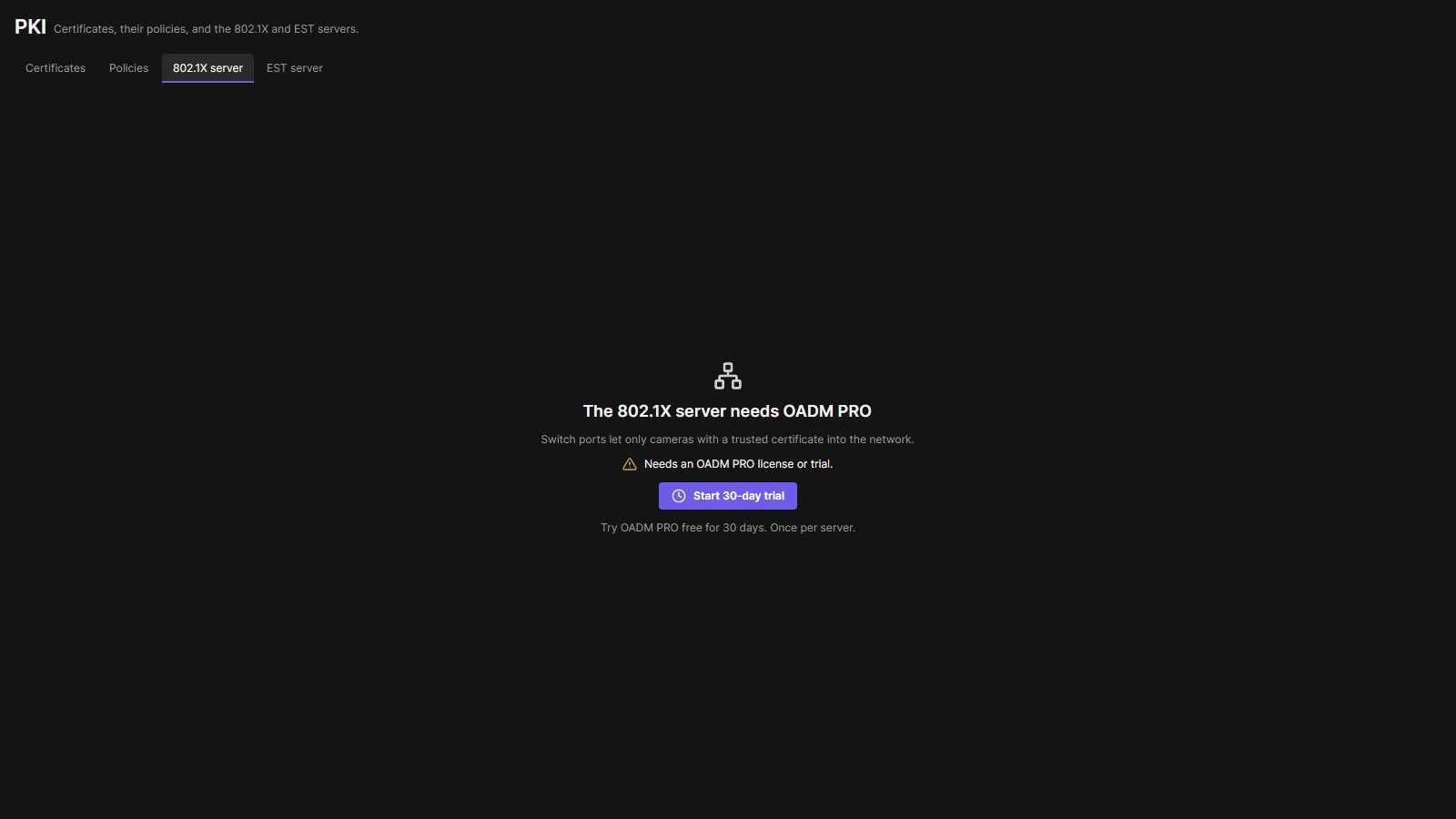
- Open PKI in the navigation (group Security) and the tab 802.1X server.
- While the server is off the tab says so in the middle, with Turn on. Without an active license or trial it says “The 802.1X server needs OADM PRO” instead: an administrator can click Start 30-day trial there (once per server).
- The status left of Save shows Running on port 1812 when it is ready.
- Add your switches (below) and set OADM as the RADIUS server on each switch, with the same shared secret.
Turn off next to Save stops the server; the switches, sessions and settings stay.
The tab
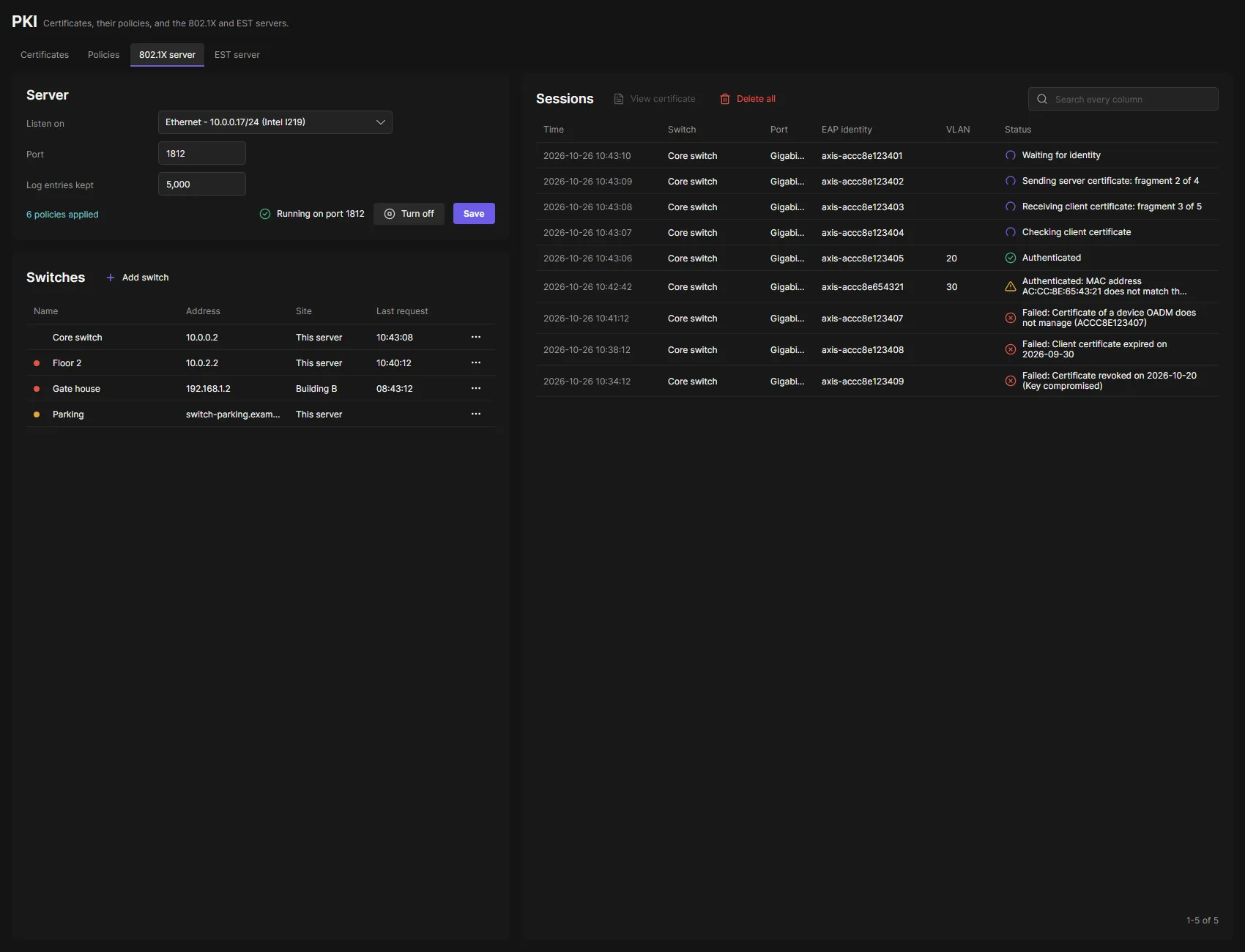
Section titled “The tab”Server and Switches are on the left, Sessions on the right. On a narrow window they are below each other.
Server
Section titled “Server”- Listen on: the network interface the switches reach the server on, or All interfaces (default).
- Port: the UDP port the switches send to (default 1812).
- Log entries kept: how many finished sessions the list keeps, 1,000 to 50,000 (default 5,000).
Next to Save, the link 3 policies applied (on a new server) names the rules of the server when you point at it: its certificate, TLS version, largest EAP packet, how often cameras sign in again, which CAs pass, VLANs and blocked devices. They are policies on the PKI page; a click opens them.
The server’s certificate
Section titled “The server’s certificate”Cameras check the 802.1X server with its certificate, against the RADIUS server CA their IEEE 802.1X policy gave them. The 802.1X server policy of the PKI page names the certificate: by default 802.1X and EST server, which OADM makes from OADM Root CA when OADM PRO becomes active. It needs an ECC key and never renews itself. To use another one, see Server certificates.
Switches
Section titled “Switches”Every switch that may ask OADM: name, address, site and its last request. A dot before the name says that the switch needs attention; point at it for the state.
| State | Dot | Meaning |
|---|---|---|
| Answered | none | OADM answered the switch. |
| No requests yet | amber | The switch has not asked yet. Check its RADIUS settings. |
| Wrong secret | red | The switch sends with another shared secret. Enter the same secret on both. |
| Site offline | red | The site node of the switch is not connected. |
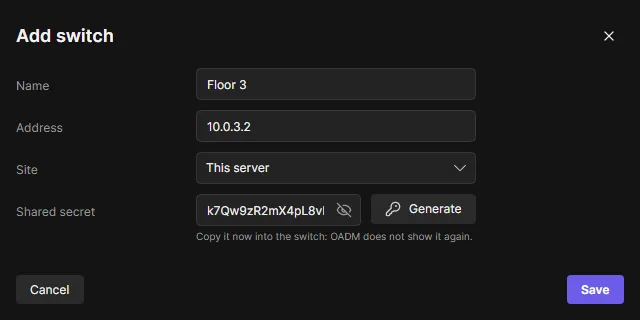
- Add switch opens the dialog: Name, Address (IP address or host name), Site (when you have sites) and the Shared secret, 8 characters or more. Generate fills in a random secret and shows it once: copy it into the switch now.
- ⋯ > Edit changes a switch. Leave the secret empty to keep the current one.
- ⋯ > Delete (red, with a confirmation) removes a switch. OADM no longer answers it.
Changes to the switches apply at once, also while cameras sign in on other switches. A server takes up to 500 switches.
Sessions
Section titled “Sessions”One list of every sign-in: the cameras signing in right now on top, then the finished ones, newest first. Each row has the time, switch, port, EAP identity, VLAN and the status. A camera signing in shows how far it got, for example Sending server certificate: fragment 2 of 4; a finished one shows Authenticated or Failed with the reason. Point at the VLAN to see the policy that gave it. A camera that passed with something odd shows amber, for example when its MAC address does not match its certificate (a copied certificate shows this way).
- Search finds text in every column, also the MAC address, device and IP address.
- View certificate shows the certificate the camera sent (also a double click on a row).
- Delete all (red, with a confirmation) empties the list for every client.
To keep a camera out, add it to a Block policy on the PKI page, or delete its certificate on the Certificates tab there: OADM no longer accepts a deleted certificate.
Who gets onto the network
Section titled “Who gets onto the network”OADM lets a camera in only when its certificate:
- comes from a CA of an 802.1X trusted CA policy on the PKI page (at the start OADM Root CA and the Axis device ID), or from a CA of OADM below such a CA, is valid now and is meant for network access,
- names a device OADM manages (its
axis-<serial>.localname or its Axis device ID), at a site a device of that site, unless the policy lets in any device with a valid certificate of that CA, - was not deleted or replaced in OADM, and no Block policy holds the device.
A genuine Axis camera that OADM does not manage stays out. The name the camera sends before its certificate (the EAP identity) is shown, never trusted. A VLAN policy tells the switch which VLAN to put the camera in; a change applies at the next sign-in of each camera. Policy changes apply to the next sign-in at once, without a restart.
Before you change certificates
Section titled “Before you change certificates”A camera on a port that enforces 802.1X drops off the network when its new certificate or its RADIUS server CA does not fit the RADIUS server. OADM’s tasks always install the RADIUS server CA of the chosen IEEE 802.1X policy and never check it against the server first. So:
- Turn 802.1X off on the switch ports, or test with one camera first, before you run Enable IEEE 802.1X, Renew certificates or Install certificates with a new policy or a new CA.
- When you move to a new CA, the 802.1X server keeps its certificate from the old CA. Choose a certificate of the new CA in the 802.1X server policy before cameras get the new CA as RADIUS server CA (see Move to a new CA).
Users with a device group
Section titled “Users with a device group”Users limited to a device group see the sessions of their devices. Only users with all devices change the settings, the switches and the list.
Troubleshooting
Section titled “Troubleshooting”| What you see | What to do |
|---|---|
| The 802.1X server needs OADM PRO | Start the 30-day trial there, or import a license in Settings > License. |
| Status The PKI has no certificate authority. | Create or import a CA on the PKI page. |
| Status The 802.1X server has no certificate. Choose one in its policy. | Choose a certificate with an ECC key in the 802.1X server policy on the PKI page’s Policies tab. |
| Status The 802.1X server cannot use its certificate: … | The certificate ended, was removed or its key cannot be read. Choose another one in the 802.1X server policy. |
| Status Port 1812 is used by another program. | Stop the other RADIUS server, or choose another port and change it on the switches. |
| Switch shows Wrong secret | Enter the same shared secret on the switch and in OADM. |
| Switch shows No requests yet | Check the switch’s RADIUS server address and port, and that it reaches the OADM server. |
| The device does not trust the server certificate | The camera checks the server with another CA. Set the RADIUS server CA of its IEEE 802.1X policy to the CA of the 802.1X server’s certificate and run Renew certificates or Enable IEEE 802.1X on the camera. |
| Certificate not issued by a trusted CA | Add an 802.1X trusted CA policy for the CA of the camera’s certificate. |
| Certificate of a device OADM does not manage | Add the camera to OADM, or check that it is the right camera. |
| Client certificate expired | Renew the certificate (Renew certificates on the Security menu, or EST - Certificate Enrollment). |
| Certificate deleted in OADM, Certificate replaced by a newer certificate | The camera uses a certificate OADM no longer accepts. Give it a new one with Enable IEEE 802.1X, Renew certificates or EST - Certificate Enrollment. |
| Blocked by a policy | Remove the camera from the Block policy on the PKI page. |
| Too many sessions on the port | Many devices tried to sign in on one port at once. Check what is plugged into that port. |
| Timed out | The camera or the switch stopped answering. Check the cable, the switch port and its 802.1X settings. |